Sending a Signature Request within Docsvault is as simple as right clicking on the document and filing out necessary signer information. Documents need to be in PDF format for signature. However, you can easily create a PDF version of Word and Excel files in Docsvault with one click before sending out a signature request.
•Only users with Digital Signature subscription can create signature requests
|

Important: Complete your edits before sending the signature request. Editing a signed document after it has been digitally signed will invalidate the signatures.
Signature Requests can be initiated from both Desktop and Web interfaces.
•You can create a signature request from Signature Requests under My Workspace > Public Links in the left panel of the Docsvault interface by clicking the New button OR
Directly from the documents list by Right-clicking on the file(s) and selecting Request Signature
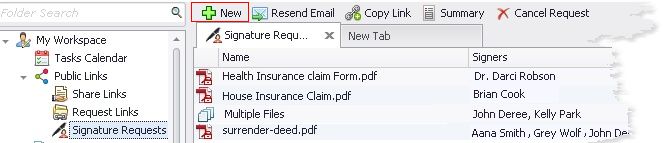 Signature Requests Node |
•A page will open in web browser where you can add signers and set options.
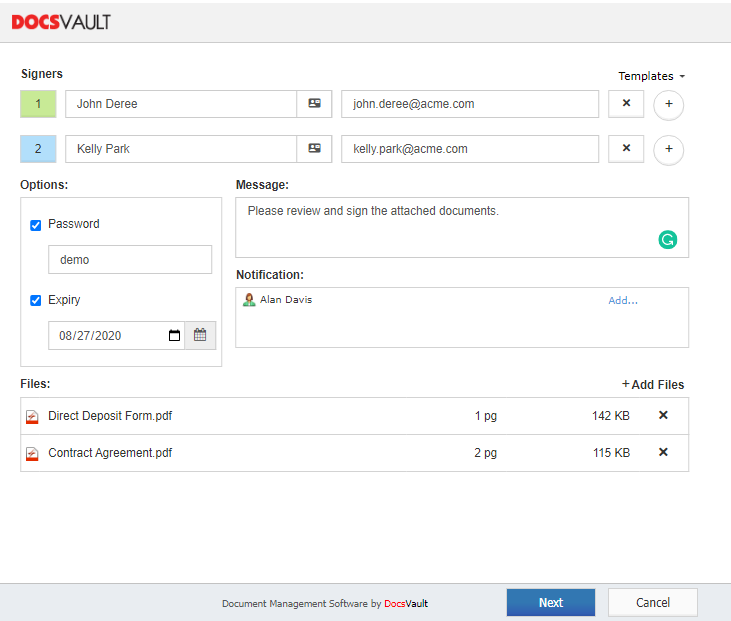 Create a Signature Request |
•Select Template: This lists all saved templates with pre-defined signers, messages and other options. You just need to make necessary changes and you are ready to send out a signature request.
If you frequently send signature requests to the same people or of the same type, templates are a great time-saving way to go. To learn how to create a template, see Signature Request Template
•Add Signers: Enter the Signer's name and email in the order you want the document to be signed. You can add any number of signers by clicking on + button. They will be sequentially added to the signature workflow. You can even select signers from your Docsvault's Address book.
To remove the signer from the list, select the specific row and click on the delete button.
If there are multiple signers, they will get an email notification in a sequential order. When the first signer signs and submit the document, an email is sent to the next signer on the list. Signers only receive an email notifications when it is their turn to sign. Once the documents are signed by all the signers, everyone gets an email with a link to download the signed documents and optionally the signature certificate documenting the entire signature process.
•Options:
oPassword: If you're sharing sensitive documents, you can add a password for additional authentication. You can then share this password with the signers by other method of communication.
oExpiry: Sets how long you want the signature request link will be accessible for both signing documents as well as downloading them once signing is completed. By default, links will be valid for 30 days. You can adjust the default expiration of your signature request link id desired. Once the expiry date passes the requested link becomes invalid which means signers will no longer be able to sign or access the documents. You can then either extend the validity or create a new request.
•Message: Here, you can add an optional message for signers. This message will be displayed in the email requests and in the browser before signing the documents.
•Notify Users: Select Docsvault users who should be notified about the progress of this signature request.
•Add files: You can send multiple documents in a single signature request. Click +Add Files link to add more documents. Note that the +Add Files options is not available when initiating the Signature Request from the Desktop Client.
For best performance, Docsvault recommends restricting the maximum size of an individual file to 20 MB. You can attach a maximum of 5 files in a single signature request.
Note: Docsvault will check out and lock the files for further editing until the request is completed or canceled.
•Click on the Next button to prepare the documents for signature.
Preview and Add Signature Fields
To prepare your document, add the appropriate fields for each recipient. You can add a unique set of signing fields for each signer.
oFirst, select a signer from the list at the top left of the Preview page
oThen, select and drag fields to the appropriate place on the document indicating where signers would sign or add other information.
Note: The fields you add apply only to the selected signer and are color-coded to match the signer's color.
oWhen you are done adding fields, click Send button to send the request to the signers.
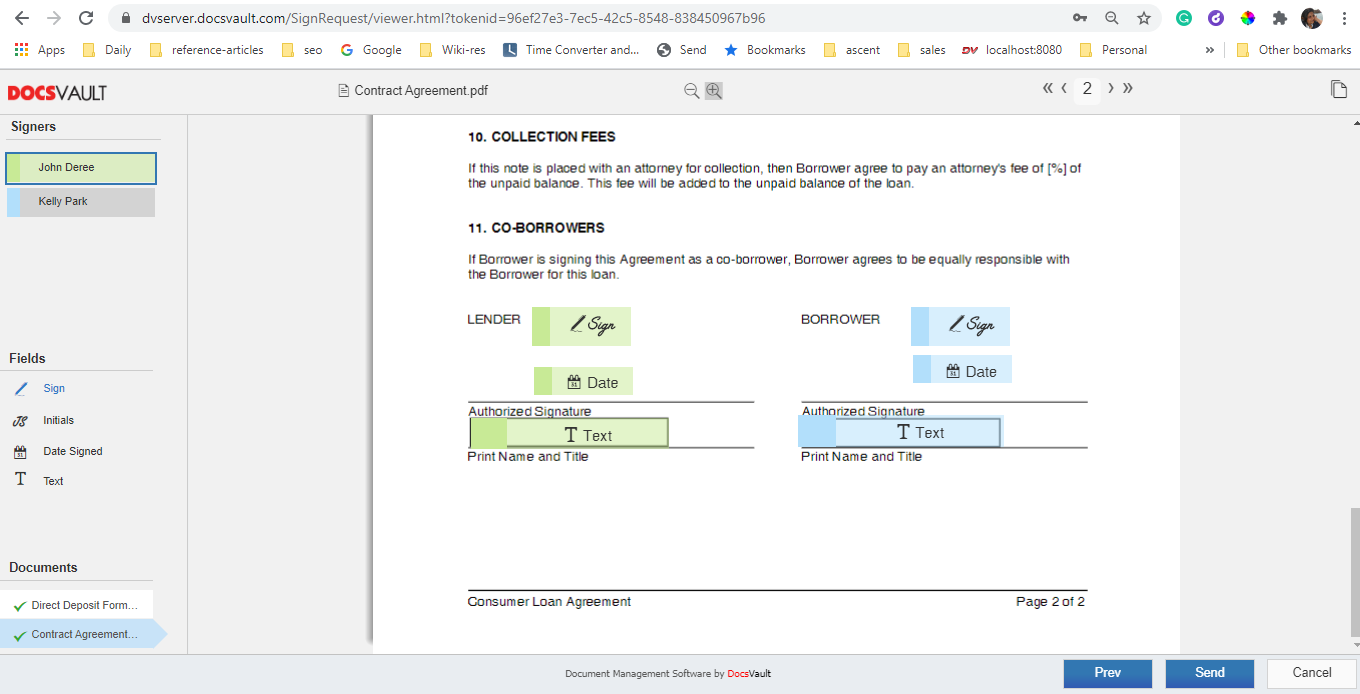 Prepare Sign Documents |
An email is sent to the signers on behalf of the sender that includes a message from the sender and a link to view and sign the documents. Signers can view and sign the documents in their Desktop or Android & iOS device web browsers.
Senders can view and manage their signature requests from their Docsvault application under My Workspace > Public Links > Signature Requests.
•PDF files with password security enabled cannot be signed
|

Creating your Signature Request Template is a simple process. You only need to complete the fields and options you need and then click on the Save as Template option from “Template” drop-down list. Give a meaningful name to the template and make the Visibility Public or Private. If you want all the users to have the privileges to view this saved template, select Public or else Private for personal use only. The next time you need to create a similar signature request, you can select this template from the top “Template” drop-down list.