Docsvault makes it easy to share your documents by email. With just a few clicks, you can export one or more documents as attachments using:
•Default Email App
This feature opens your email compose window automatically, with the selected document(s) already attached.
Step-by-Step Instructions
•Select one or more documents from the Docsvault Explorer.
•On the File menu, point to Email With Or
Right click the selected documents(s), from the context menu, point to Email With
•Choose Email Option
Docsvault will prompt you to select how you want to send the email. You can choose one of the following:
oDefault Email App
Opens a new email message in Microsoft Outlook or the configured default email application. Users can set
their preferred email client from Tools > Options > General.
oDocsvault Quick Email
Opens a lightweight compose window directly in Docsvault for quickly sending the document(s). See Docsvault Quick Email.
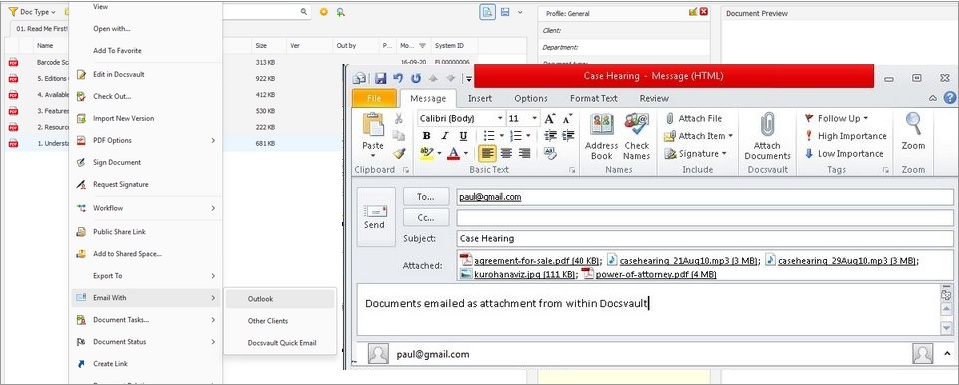 Documents emailed as attachment |
•Compose Your Email
oThe selected file(s) will already be attached.
oEnter the recipient’s email address, subject, and message body.
oAdd additional attachments if needed.
•Send the Email
oClick Send in the chosen email program.
oYour message will be delivered with the attached document(s).
Note: If enabled in the Docsvault Server Manager, the "Document ID" and "Version Number" will be added to the filenames.