Searching documents using Profile Search
Profile Search allows you to quickly locate documents based on their metadata.
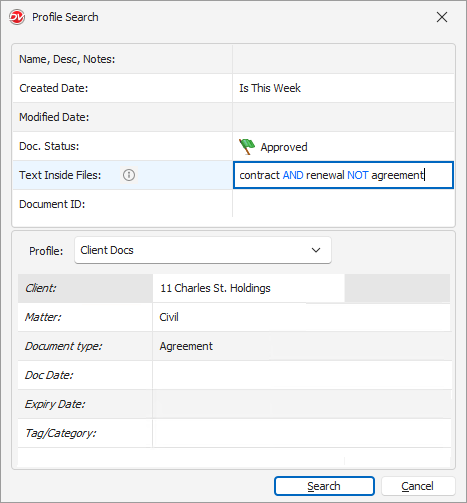
For example: To locate an agreement related to a specific matter for a particular client, you could use the "Client Docs" profile and specify search criteria in multiple profile indexes and other fields as below: |
•Click the Profile Search icon in the toolbar Or Select Search option from the Tools menu.
Define Search Criteria:
•Name, Description, or Notes: Find documents by entering keywords contained in the filename, description, or document notes.
•Text inside files:
oSingle Word: finds all forms of the word.
Example: Search for contract will find contracts, contracted, contracting. Using a wildcard, law* will find law, laws, lawyer, lawsuit, lawful.
oMultiple Words: finds words within 3 words of each other.
Example: duty negligence
This will return documents where the words "duty" and "negligence" appear within three words of each other, such as:
▪The defendant breached their duty, resulting in negligence.
▪One must first prove a duty existed to establish negligence.
oTo find exact word or exact phrase enclose them in quotes
Example: “negligent homicide” will only return results where those two words appear together as an exact phrase.
oBoolean search supports (AND, NOT, OR) for more definite text queries.
Example: "contract AND renewal NOT agreement" finds documents with "contract" and "renewal" but excludes documents with "agreement".
oProximity Search: Locates terms that appear close to each other.
Example: word1 W/10 word2 (find word1 within 10 words of word2)
oInflectional Search: Automatically finds different tenses and plural/singular variations.
Example: Searching "run" returns "run," "running," "ran," and "runs".
•When you search in both 'Name, Description, or Notes' and 'Text inside files' fields, Docsvault only returns documents that match the search criteria in both fields. This is an AND search.
•Docsvault uses a Stop Word List to ignore certain common words (and, is, a, the, etc.) being indexed. These words are ignored in search terms and may not yield expected results.
|

•Created or Modified date: Locate documents based on when they were created or last modified. You can refine your search using different operators:
oIs – Find documents on an exact date (e.g., Today, a specific date).
o= (Equals) – Matches the exact selected date.
o> (After) – Find documents created or modified after a specific date.
o< (Before) – Find documents created or modified before a specific date.
oIn – Search within a predefined period (e.g., Today, This Week, This Month).
oWithin – Locate documents from a recent time frame (e.g., last 7 days, last 30 days).
oBetween – Specify a date range to narrow results between two selected dates.
These options help you precisely filter documents based on time-based criteria.
•Document Status: Search documents by assigned status such as Draft, Final, Approved, Urgent, or other configured status values.
•Document ID: When the search criteria is set to Document ID, the system will search only by the Document ID and will NOT combine it with any other criteria.
•Select Profile (optional): From the dropdown list, choose the appropriate profile or select 'Any' to search across all profiles. You can search using any of the criteria fields above or combine fields across profiles, allowing for a broader and more flexible search.
oIndex Fields: Type the required keywords or values into the appropriate index fields. For example, to find documents created by John Doe, enter “10010 - Acme Holdings Inc.” in the Client field.
oYou can combine multiple index field values using AND and OR operators to refine your Profile search criteria. Click the + icon next to an index field to select the operator and then add another value.
▪OR: Finds documents matching any of the specified values.
▪AND: Finds documents that match the criteria on both sides of the operator.
Example: To search for documents belonging to more than one client, you would specify Client Value 1 and then add the OR operator and specify Client Value 2. In most cases you will use the OR operator unless you want to search for a document that has both values assigned to it in which case you will use the AND operator.
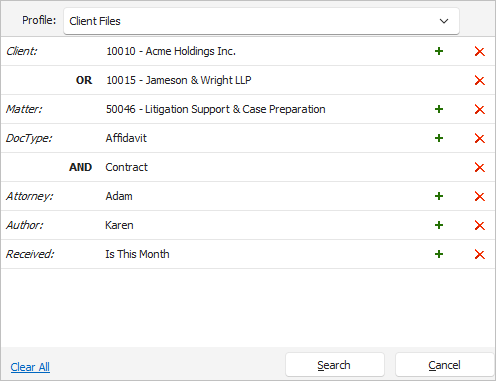
Profile Search showing AND and OR operators between index field values
oDependent fields within a profile are populated based on the selected value in the primary index field. You can also select values in a dependent field without selecting a value in the corresponding primary field.
•Click Search to view result.
By combining these search criteria, you can effectively narrow down your search results to find the desired documents.
Click Clear All to clear all fields in the Profile Search dialog and enter new search criteria.
Search Results in Multiple Tabs
Users can run multiple searches and view the results in separate tabs, making it easier to compare search results.
You can re-execute the same search using F5 or the Refresh button in the toolbar.