The My Workspace in web has following components that are specific to the user logged in.

You can keep track of following items in the Calendar:
•Active and overdue Workflow tasks. This is displayed in light blue. •Your current and future personal tasks - displayed in green. •Document tasks assigned to you. This is displayed in yellow. 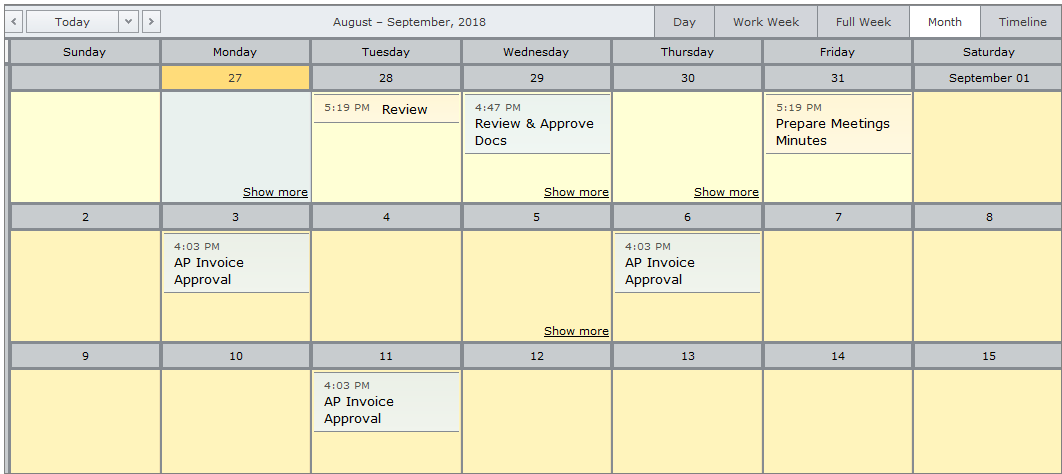
|
oFavorite Files - A list of files located throughout Docsvault that the user has marked as favorites oFavorite Folders - A list of folders located throughout Docsvault that the user has marked as favorites.
Add folders and files in Favorites
•Right-click the folder or file you want to add, and then click Add to Favorite.
•All favorites files will appear under Files node and all favorite folders will appear under Folder node
To remove from favorites, right click on the folder or file in the corresponding favorites node and and select Remove From Favorite.
|
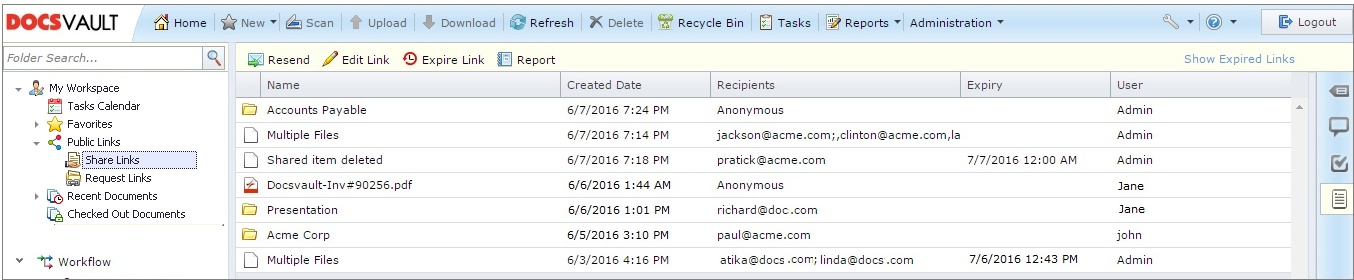
oShare Links You can view all the links you've created from Public Links > Share Links under My Workspace node on the left panel of the Docsvault interface. This list displays the name of file/folder, recipients, created date, expiry date and the creator name of the share link For working, see Share Links
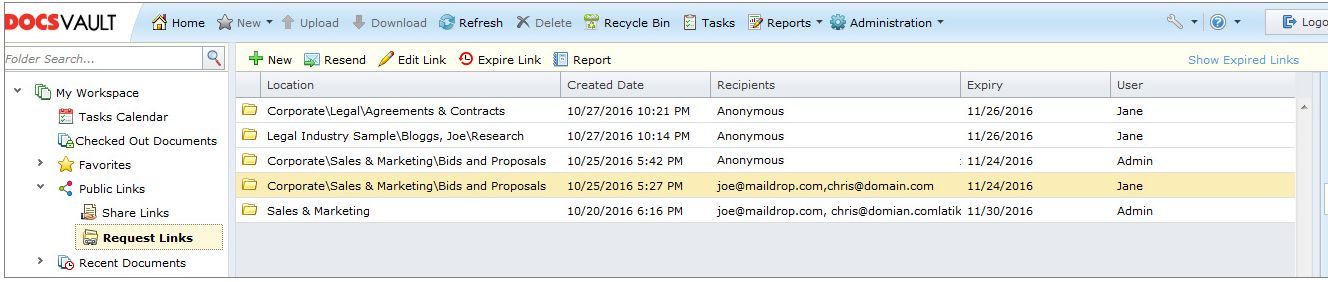
oRequest Links You can view all the links you've created from Request Link under My Workspace > Public Share node on the left panel of the Docsvault interface. This list displays the location, created date, recipients, expiry date and the creator name of the document request link. For working, see Document Request Links.
 |
oRecently Accessed Documents - A list of documents recently accessed by the user from any location in the system. oRecently Imported/Created Documents -A list of documents recently added by the user in the system. oRecently Created New Versions - A list of new file version created by the user. |
This list displays all document currently checked out by a user for editing.
 |
Users may choose to disable the My Workspace node from Tools > Options > Others in their Desktop Client application.