General Settings
General settings enable you to set your own preferences for the general functioning of Docsvault application.
Let us discuss various check boxes and button for setting general preferences:
Start Docsvault on system startup
When selected, Docsvault application will start when you startup the system. Docsvault application icon appears in system tray (at the extreme right of taskbar).
You may startup Docsvault's main window by double clicking on the system tray icon.
Docsvault Viewer
You can set your preference to open PDF and Image files in Docsvault Viewer by default.
Idle Timeout - Auto Logout
You can also setup an Auto Logout feature in Docsvault for more security. In Auto Logout feature, the application logs out the user and rests in the system tray, if the system remains inactive for a certain amount of time. You can re-run the application after entering the login password.
Idle Timeout: Automatically Active View Refresh
Enable Auto Refresh to keep the active view up to date. Docsvault refreshes only the active tab based on the configured idle timeout, ensuring minimal disruption.
When the application remains inactive for the specified duration, the active tab is refreshed automatically. This refresh occurs without bringing the Docsvault main window into focus, allowing you to continue working in other Docsvault windows or external applications.
Enable Spellcheck
Enable this option to spell check all text fields, including filenames, descriptions, notes, and search fields in the desktop client.
Default Sort
User can now define their preferred default sorting method (by Name or Modified Date).
Default Email Application
Users can configure their preferred email client (Outlook or other email applications) to be used by Docsvault.
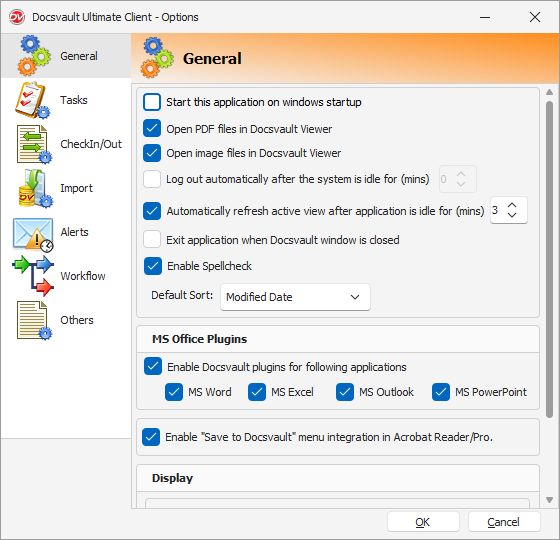 Setting General Options |
Display
Find Panel: Enable this option to display Find Panel above file lists to quickly filter files by text. Admins can configure the default setting through Server Manager > User Settings.
Preview Load Limit for Large Files: This option to sets a maximum file size limit for loading document previews for the user. Administrators can configure the default settings for users through Server Manager > User Settings.
Alternate color in consecutive rows
When selected, alternative color coding in the consecutive rows will be displayed while viewing the documents in the list view panel. The color combination will depend on the Theme selected. This helps in distinguishing file information in two different rows.
Themes
Select a skin style from the drop down list to set the current theme for Docsvault's user interface.