Docsvault Desktop Links allow users to share a desktop based link of a file or folder in place of a real document. Such links can be used to add a reference to any file or folder inside Docsvault in any document or you can share the link using any other method like chat or email message.
When the Docsvault Desktop Client is installed on your machine, clicking the link will either open the document directly in its native application, open its location in Docsvault or both depending on your personal settings.
These Links give Docsvault Desktop users quick and easy access to files or folders irrespective to their actual location in Docsvault. For example, embedding link of inspection documents in a master contract document, product specification in delivery documents, etc.
Benefits
•Streamline operations - supporting documents linked to the right record
•You may create links for files as well as folders in Docsvault – allows navigation inside Docsvault using shortcut links
•Improves productivity as documents are always available from shortcut links - no more searching for them
Copying a Desktop link to clipboard
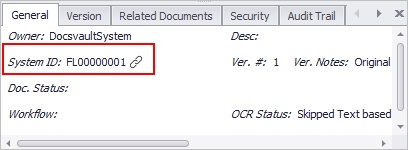
To copy the desktop link of a document, select the document and from the Bottom panel > General Tab- click the Link icon next to System ID
OR
Right-click on the document and select Properties from the context menu. In General tab, click Link icon next to System ID
OR
Right-click on the document and select Share Link from the context menu.
•Use Email Internal Link to email the shared link
•You can also select Copy Internal Link to copy the link
 |
This will copy the document’s hyperlink to your clipboard which can then be pasted in any document or shared any way you want.
Quick Facts:
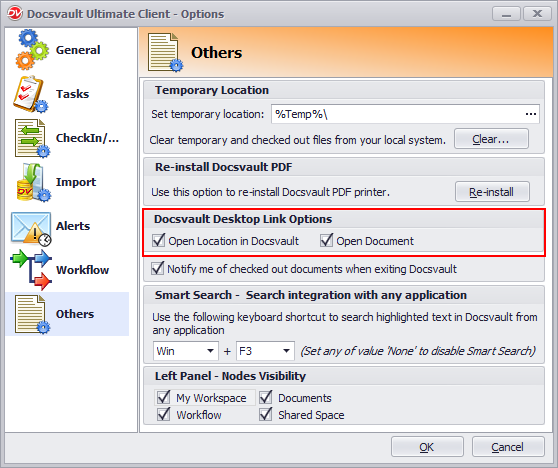
•Clicking the link can open the document in its native application, open the file or folder location in the Docsvault Client, or perform both actions. This behavior can be configured under Tools > Options > Others > Docsvault Desktop Link Options.For settings, click here.
•The user must be logged into the Docsvault Desktop Client for the link to work. If not logged in, Docsvault will open and prompt for login credentials.
•The link opens only if the user has appropriate security rights and the associated application is installed. A minimum of Read rights is required to view the file.
•The link always points to the latest version of the document and remains valid even if the document is renamed or moved within Docsvault.
 |