Docsvault allows you to compare two PDF documents or different versions of the same PDF document. The comparison highlights text changes, formatting differences, and object positioning in a side-by-side view.
Method 1: Compare Different Versions of the Same Documents
This method allows you to identify changes between the latest version of a document and a previous version.
•Locate the Document: Navigate to the folder containing the document you want to compare.
•Right-Click for Comparison: Right-click on the desired document.
•Select "Compare": From the context menu, choose the Compare option.
•Select Version to Compare: A list of available versions appears. Select the version you want to compare with the current one.
•View the Comparison: Docsvault opens the comparison in the PDF editor with:
oSide-by-side view (Old vs New)
oHighlighted changes
oSummary comparison page
•Navigate the Comparison: Use navigation tools to move between differences.
•Save (Optional): Click Save to Docsvault to store the comparison document.
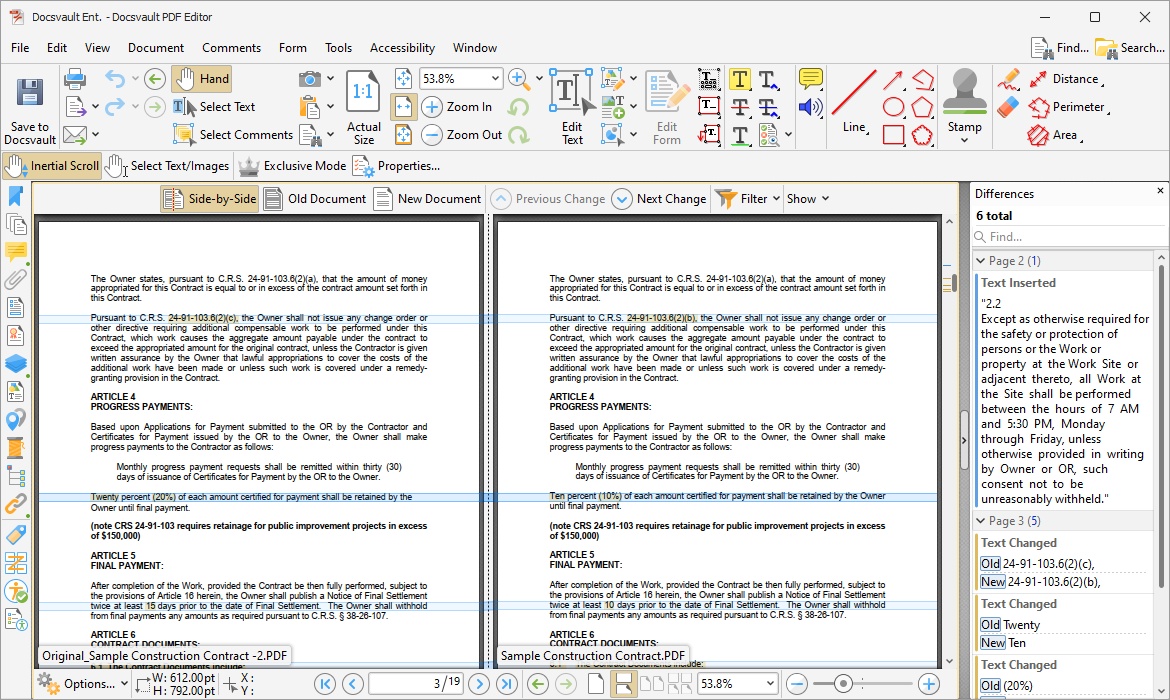 Comparing PDF Documents |
Method 2 - Compare Two Different PDF Documents
Use this when comparing two PDFs saved as separate documents in Docsvault.
•Locate the Document: Navigate to the folder containing the first document.
•Right-Click for Comparison: Right-click on the selected document.
•Select "Compare": From the context menu, choose the "Compare" option.
•Browse for the Second Document: Select the document you want to compare against the first one.
•View the Comparison: Docsvault opens side-by-side comparison
•Navigate the Comparison: Use the viewer's navigation tools to examine the differences.
•Save or Export (Optional): Click Save to Docsvault to store the comparison document.