Managing your signature requests
You can view all the signature request created from Public Links > Signature Requests under My Workspace node on the left panel of the Docsvault interface.
The Signature Request tab provides a convenient workspace for all your signature requests management activities:
•Creating a new signature request
•Easily finding request by sender, date, recipients, or status using filters
•Tracking the status of your pending signature requests
•Performing actions like copy link, cancel request, change expiry date, or send reminders to signers
View Signature Request Details
This list provides the basic status of your signature requests. From this list, you can see the following details:
Name: Documents sent for a signature request
Signers: The list of signers for a signature request
Signer's email: Email address of signers
Last Activity: Provides date of the current status of a signature request
Expiry: Date on which the request link will expiry
Sent On: Date on which a request was sent
Sender*: Name of the person who send the request
Status: Specifies the current status of the request, such as Not Started, In Process
Message: Message sent by requester to signers
 Signature Requests Tab |
*These columns are visible to Administrator group members only.
View Signer Activity
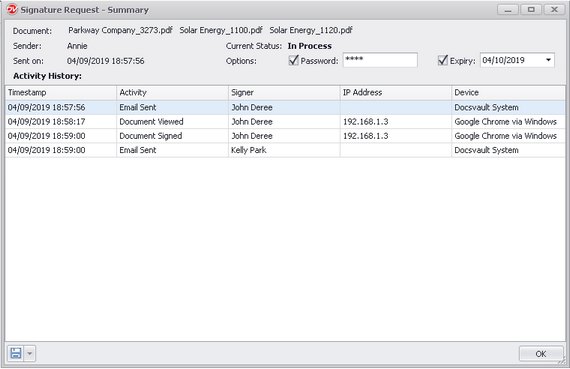
The detail view for any specific signature request can be seen by double-clicking on the request or clicking on Summary button at the top. This view shows each signer's activity on the signature request. It lists the following details:
Documents: Lists the documents sent for the signature request
Sender: Name of the person who sent the request
Sent on: Date on which the signature request was sent
Current Status: Specifies the current status of the signature request, such as Not Started, In Process and Completed
Options: Displays the password and expiry date of the requested link. These options are editable.
Activity History: This will show each recipient's activity on the signature request, including the date, signers that have signed, IP address and device.
|
Edit Signature Request
Docsvault allows you to change the password and expiry date options only for signature request in-process. To edit, double click on signature request for which you want to change the options.
Once updated, you can inform the signers by resending the email notification using 'Resend' button. The recipient receives the same notification as before with an updated expiry date. For any change in the password, you will have to personally inform the signers using some other method.
Actions that can be performed by the Sender:
Resend: You can send another copy of the original email message to the signer whose turn it is to sign the document. Select the signature request and then click the Resend button. You can also select multiple requests and send reminder emails in one shot.The resend feature can be useful when your signer has lost the original notification email or when you want to send a reminder to your signer.
Copy Link - This allows you to quickly obtain a signature request link for the signer whose turn it is to sign the document. You can then paste the link in an email or anywhere you want to share the link with the signer next in queue.
Cancel Request - After sending a signature request, you can cancel the request at any state of the process before it is completed. This will cancel any outstanding signing activities and will void the transaction. All signers who have already completed signing receive an email informing them that the signature request was canceled.
Find: Allows users to filter signature requests by text
Open File Location: You can open the actual location of the signature document by simply right clicking any request and selecting the "Open Location" item.
NOTE: To keep the active signature requests list clear and relevant, you will need to cancel any expired requests that you do not wish to extend so that they are moved to the history section.
Show History
All signature requests that are completed or canceled are moved to the History section which can be accessed by clicking on the “Show History” link in the top right corner. By default, it will list requests created in the last 90 days.
Users can double click on any request to see Summary of signer activity for any request. Users can also save the Signature certificate for all completed requests from the top toolbar button or from a request’s right click menu.