All forms are listed under Forms menu. The columns displays: category, owner of the form, last modified date and the total number of entries received for a form. These columns can be sorted & filtered.
In the bottom right of a page, you can also define a number of forms to display per page. By default, pages display 10 items per page.
Each form has a number of settings and properties that can accessed by hovering over the form’s name. The following is a breakdown of all actions that can taken for each form in the Form Home page.
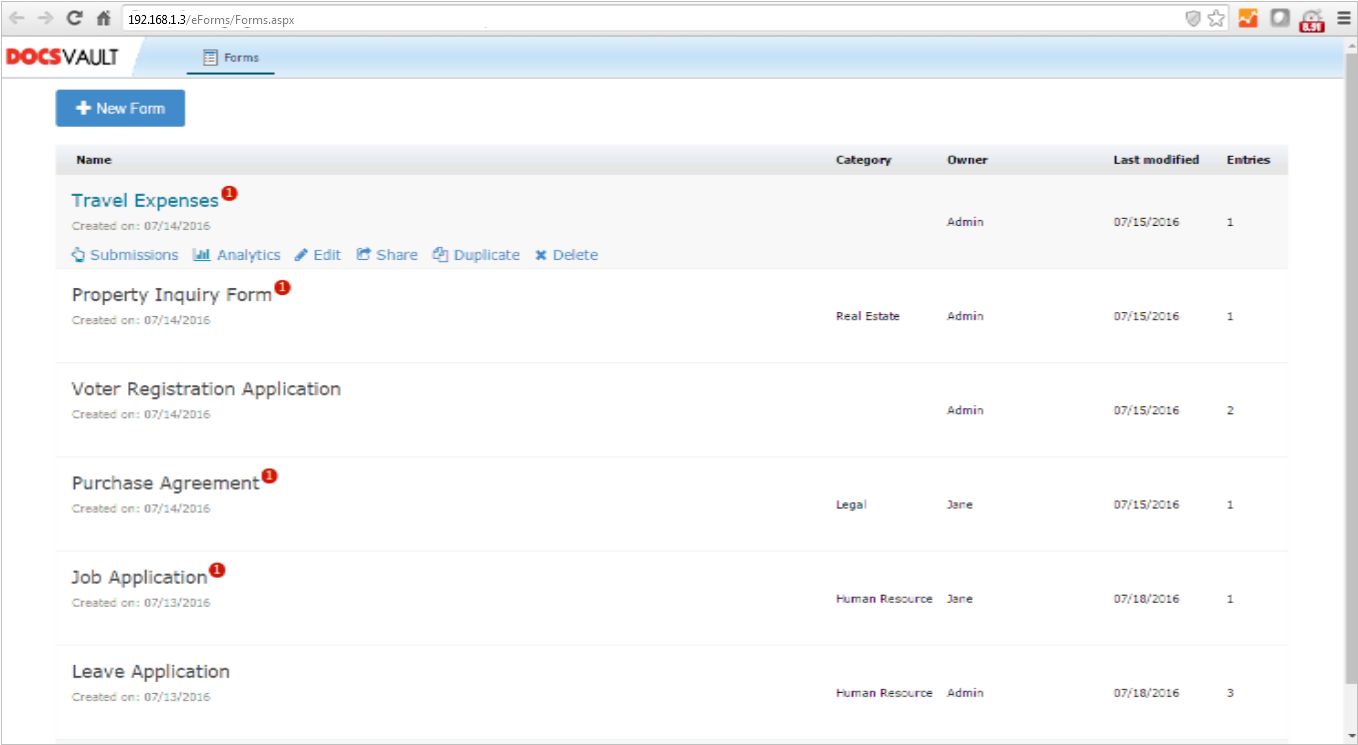 |
•Submission - This will display all the new entries. Click on the link to go Submission page, where you will be able to browse, comment, edit and delete all of your entries.
•Analytics - This will take you to the Analytics page, which will allow you to view overall statistics and percentages of your form. You can also see where your users were located or what system was used while filling out the form
•Reports - This link will list current or create new Reports based on your form entries
•Edit - This link takes you to the Form Designer where you can modify your form
•Options -This link takes you to the Options where you can specify and change the administrative settings
•Share - This is where you'll find multiple sharing options for sharing your form with others
•Duplicate - The will allow you to duplicate a form. Duplicating a form will create a new form with the same name and ‘Copy’ appended on the end
•Delete -This will allow you to delete a form