Data Export Jobs
This guide provides instructions on how to configure, manage, and customize data export jobs in your Docsvault system. These jobs allow you to automatically copy files from specific cabinets and folders to a designated location.
Configuring Export Jobs
•Navigate to Export node in Docsvault Server Manager dialog box.
•Click the "New" button to create a new export job.
•Define Export Job Settings:
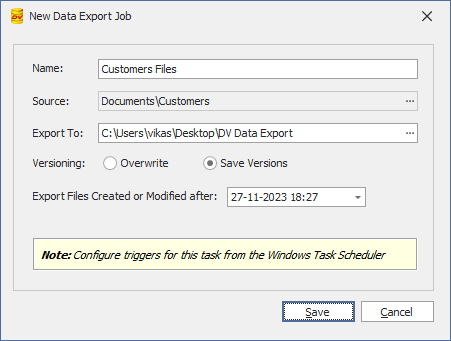 Configuration of Export Job |
•Name: Enter a sensible name for the job.
•Source: Select the cabinet or folder to export files from. Export will include all sub-folders.
•Export to: Specify the target location (local directory or network share) for the exported files.
•Versioning Control: Choose how you want to handle versioning of exported files:
oOverwrite: Replace existing files with newer versions.
oSave Versions: Export all versions. The system will append a version number ( _v1, _v2, etc.) to the file name to avoid overwriting. The latest version will always be the one without any version tag at the end.
•Date Cutoff: Specify a date and time to limit the export of files created or modified after the specified date.
•Save the export job configuration.
Managing Export Jobs Schedule
•The system automatically creates a Windows Task Scheduler task for each job with the job name (example: "Docsvault - <job name>). DO NOT change the name for this task directly in the Task Scheduler window.
•The default schedule is daily at 4:00 AM system time.
•To modify the schedule, use the Windows Task Scheduler or access it directly by clicking "Open Task Scheduler" option in Docsvault.
Export Job Status:
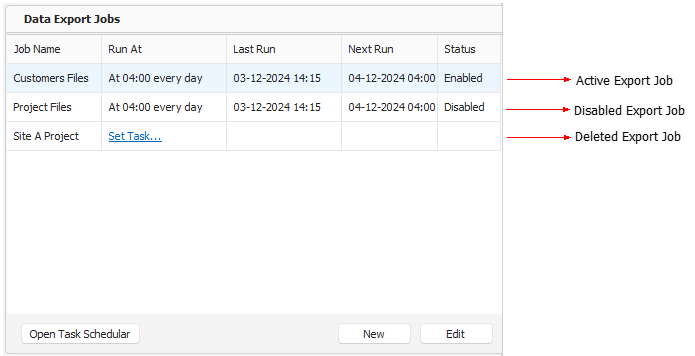 Export Job List |
•The "Data Export Jobs" list displays job name, schedule, last run time, next run time, and status.
•To reset a task deleted manually in the Windows Task Scheduler dialog, click Set Task....
•To delete a scheduled task, click Edit and then Delete.
Export Job Logs
Export logs are located at C:\ProgramData\Docsvault. Each job has its own unique log file and will be identified by its job name (DataExport_<job name>_Log).
•One-Way Export: This utility is a one-way export - i.e. it will simply dump files from the repository to the export location. So - If a file is deleted or moved inside Docsvault it will not be deleted/moved in the exported location but a moved file will be reexported at the new location too.
•Versioning: Versions of files are also exported and are appended with _v#. However, the latest file is always the one without the v# suffix at the exported location. New versions created after the last job run will be exported.
•Incremental Exports: Only new or modified files after the last job run are exported.
•Retention and Archive: Files marked for retention (physical records) or archive are excluded from export. |
