This section covers:
Creating Static Index
Editing Values in a Static List
Deleting Values in a Static List
You can create static index in Docsvault as follow:
• Adding Static Index Values
• Importing Static Index Values
•You can add static index values using this option in Docsvault Server Manager as well as in Docsvault Client. To edit the indexes from the client application, go to Administration > Profile/Indexes.
•From the Indexes tab click on New to bring up Create Indexes dialog box as shown below
•Enter a Index Name and a short Description about it
•Enable Inherit Value to inherit the index value from parent folder. When index value is set to inherit from parent folder, values will be inherited even if a different profile is assigned to the parent folder.
•From the Index Type, select Static radio button
To add values to static list, enter a value in the text box and click on Add button
•Click on Save button to save the new Index.
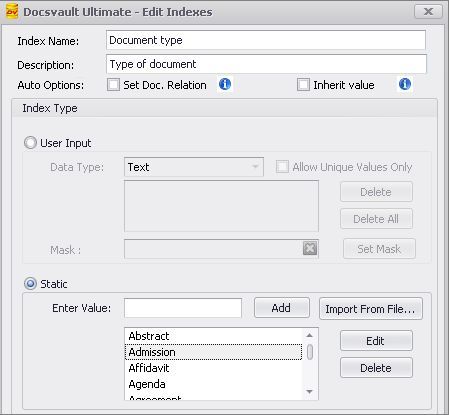 Create Index - Static List |
Instead of choosing to enter index values one by one using 'Add' button, selecting 'Import from File' option is quick way of importing values from a xml or csv file.
•Click on Import From File... button to import static list of values form either a xml file or a comma separated value file.
•Data File: Browse to the file on your machine that you want to import from
•Select Column: Select the field to import values from
•Check the box next to 'Include First Row Values' if your csv file does not have a header row and the even the first row has data values
•Click on Import button to import all values from the selected field
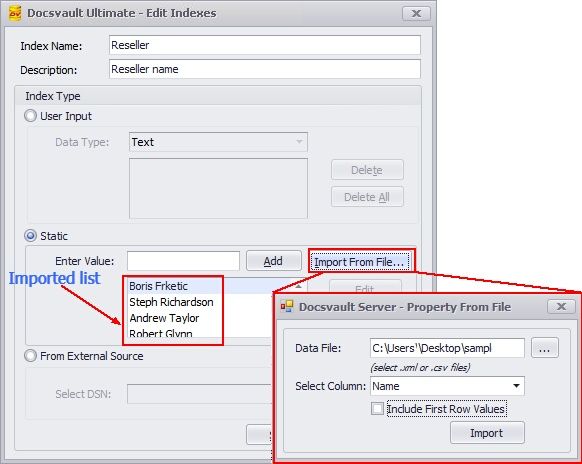 Import Static Index Values |
If you wish to add more to the listing, follow the above steps. Docsvault will append the new values to the existing list and will skip any duplicate value found.
Editing values in a Static List
•Select a value from the list and click on Edit button.
•This will display the same value in the text box
•Change the value from the text box and click on Update button
•Click on Save button to save the changes
Deleting values in a Static List
•Select a value from the list of values and click on Delete button
•Click on Save button to save the changes
You can change the Index type of an existing Index i.e Static to User Input and vice versa. This conversion is possible for only Text data type indexes.
•Select an Index from the list and click on Edit button
•In the edit dialog box, under the Index Type section, select the desired Index type radio button
•The values entered by you before conversion for the User Input Index, will automatically be available for selection when converted to Static Index type
•Click on Save button to save the changes
•You cannot delete an Index if it is assigned to any profile •You can change the data type of an Index from Numeric/date to Text data type. Note that once converted it is not possible to convert it back to Numeric/date data type. •Only Text data type indexes can be converted from Static to User Input and vice versa. •Admin or administrative group members can import the static list in Docsvault Server Manager. |

Users with the "Edit Profile" system-level permission can add new items to a static list index field directly from the profile panel in Docsvault. This can be done when creating a new document or editing the profile of an existing one. This streamlined process offers several benefits:
•Real-time Updates: Changes made to static list values are instantly reflected across your entire document repository.
•Consistent data entry: Encourages users to input accurate and consistent data, improving overall data quality.
•Synchronized Naming: Folder and file names generated by automatic naming or filing rules are automatically updated to match any changes in the corresponding static index value.
•Enforced Consistency: Prevents manual renaming or metadata editing of folders automatically generated by profile rules.