Assigning Document Status to a Cabinet/Folder/File
Assigning a document status to an item, adds a flag icon to it. You can use flags to remind yourself to follow up on an issue, to indicate a request for someone else or take action related to it at a later time. You can see the flagged item in the file lists.
•Users with minimum 'New Version/Check out' rights can apply document status for the first time or when creating a new version while checking in or importing •Only Owners, Admins and users with 'Overwrite' rights can change document status assigned to a document from its right click menu •When securities are applied from top down (say pushed down from the cabinet or parent folder level) – custom security due to doc. status is retained and not overwritten
|

To assign a status
•Select the cabinet, folder or the file you wish to assign document status from the list view panel.
•Right click and then point to Document Status. This will open a list of available document status that can be used to flag the selected items.
•Select the appropriate status from the list.
•Note that the list view panel will now display the associated flag, as shown below.
•You can also assign document status to multiple files/folders/cabinets at the same time. Select the items, and then right click and select the Document Status.
|

If the file is assigned a document status, its information will be displayed in the status bar when selected.
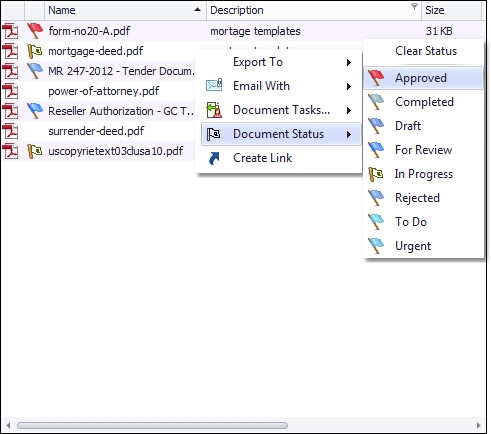 Assigning document status |
Following document features are applicable if the options are enabled in that document status.
Versioning: Document Versions are automatically created when a document moves out from a particular document status with this option enabled. This way a version of the document, when in a particular state, is always maintained automatically.
Document Security: When a document is assigned a document status, depending on the configuration of security:
•A document is assigned a customized security or
•The assigned security on a document can be cleared and parent folder security can be inherited.
Document Ownership: The ownership of a document can be changed with the change of document status.