Task Manager Window helps you to see and manage all in bound, outbound and your personal tasks.
To Open Task Manager Window
•On the Tools menu, click on Tasks Or
• From the toolbar, click on Task icon
Docsvault's Task Manager offers following types of tasks:
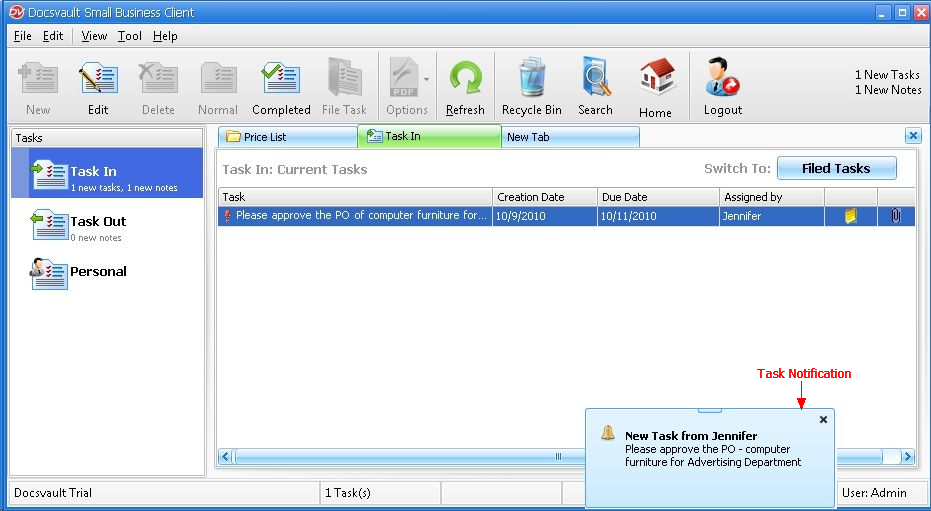
This will show information about the tasks assigned to a user by other users in the Docsvault system. Information includes the task description, when the task was assigned, when it is due, who assigned the task, any notes associated with the task and the files routed along with task, if any. Here you can also see the status of the tasks such as priority, tasks are completed etc.
The following figure shows the status report of the tasks assigned to a user.
 Task In |
•New tasks will be displayed in bold. •You can receive email notifications for all task activities. •Tasks that are completed and filed are not shown in the task list. Click on the 'Filed Tasks' button to see all filed tasks. •User’s tasks notifications older than 90 days are deleted from the system automatically for optimization.
|

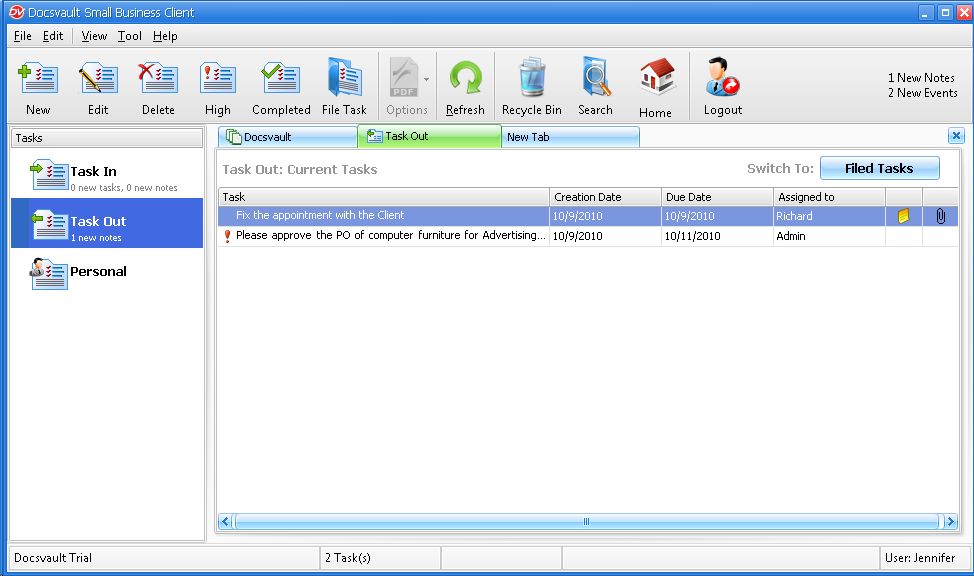
This will show information about the tasks assigned by a user to other users in the Docsvault system. Information includes task description, when the task was assigned, when it is due, to whom the task is assigned, notes associated with the task and the files routed along with task, if any. The following figure shows the status report of the tasks assigned to a user.
 Task Out |
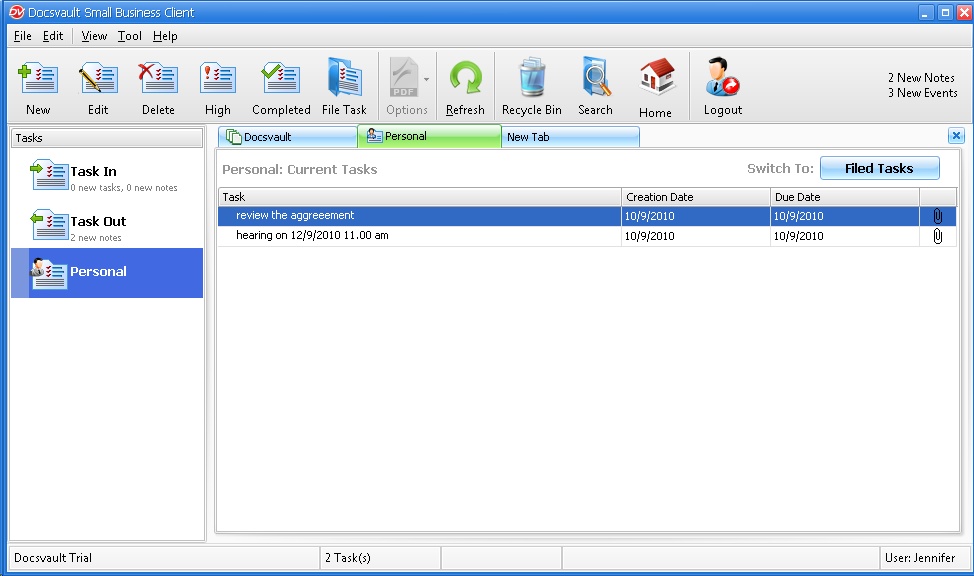
This will show information about all the personal task created by a user. Information includes task description, when the task was created, and when it is due. The following figure shows the status report of the tasks assigned to the user.
 Personal Task |