Automatic Email Capture
This feature enables you to capture your emails directly from your email server by setting up email capture jobs with rules. Email jobs work in the background and will capture desired emails and attachments and save it to the Docsvault repository at regular intervals without any user intervention. This feature uses the POP & IMAP protocols supported by all email servers.
Automatic Email Capture solves many basic purposes:
•Complete archival of email communications by sender, year, etc.
•Capture of important business documents like orders, invoices, POs, etc.
•Easy searching for all email communications across company accounts.
•Indispensable tool for e-discovery audits, and analysis.
In today's business environment, crucial documents such as correspondence, legal documents, applications, invoices, and orders are often sent and received as emails or attachments. Docsvault's Automatic Email Capture enables you to capture your emails and attachments directly from your email server into Docsvault. You can use captured email information like To, From, Subject, etc. along with dynamic fields like date and time, to name and file the captured emails in the Docsvault repository. Docsvault will even create new folders as necessary.
An Administrator user can create Email Capture Jobs in Docsvault Server Manager dialog to fetch emails from any email server that supports POP (Post Office Protocol) and IMAP (Internet Message Access Protocol).
Creating Email Capture Jobs
From the Server Manager dialog on the server side click on the 'Email Capture' node. Click on the 'New' button to start up the configuration wizard. Email Capture jobs can be set in 4 simple steps.
Step1: Configure mail server and email account
Step2: Set capture rules
Step 2.1: Define rules based on criteria like name, email address, subject, body, attachments, etc. or capture all emails
Step 2.2: Set email filing configuration
Step 2.3: Set email attachment filing configuration
Step1: Configure Mail Server and Email Account:
•Job Name: Enter a relevant name for the capture job.
•Job Description: Describe the job to be performed
•Mailbox Type: Select the appropriate protocol for your email account (Classic Username and Password or OAuth2 Office 365).
•Type: Specify the IMAP/POP port type used by your mail server. By default IMAP uses port 143, unless you wish to use SSL encryption in which case generally the port is 993. POP uses port 110 and port 995 for SSL.
• Use SSL encryption: Check this box to use encryption if your server supports it.
•Server: Enter the email server name (e.g imap.yourdomain.com or mail.yourdomain.com).
•Email: Specify the email id. Note that if you are using email through a hosting provider, you may have to enter your entire email address.
•Password: Specify the password.
•Verify Connection: Click on the Verify button to check the connection. This will enable the next "Select IMAP folder" drop-down menu.
•Select IMAP/POP folder: Choose the desired folder to capture emails from. For incoming emails, select INBOX.
•Check Frequency: Specify how often the mailbox should be checked for new emails. The default interval is set to 30 minutes.
•After Import Action: Specify the action to be performed on emails after importing into Docsvault.
oDo Nothing: No action will be performed on the emails in the email server after being imported into Docsvault.
oDelete Email: This option will delete all emails captured by Docsvault in the email server.
•Click on the Next button to set the capture rules.
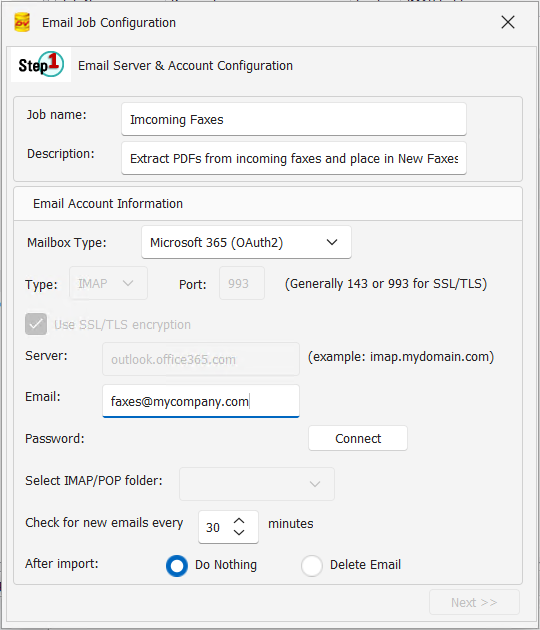 Email Server & Account Configuration |
Step2: Set Capture Rules
Each capture job can have multiple rules defined with multiple storage destinations. This allows for proper filing of documents in their respective folders based on predefined rules. Example: Automating storage of project purchase order in project order folder and correspondence in project communication folders.
•Click Add button to open Rules Configuration dialog to add rules to capture the emails from specified email folder. See Rules Configuration.
•Click Edit button to edit rules.
•Click Delete button to delete the rule.
•Click Copy Rule button to clone rules instead of creating new ones from scratch
•Click Up or Down arrow to prioritized the rules for capture.
•Click Next to proceed to the filing rules setup.
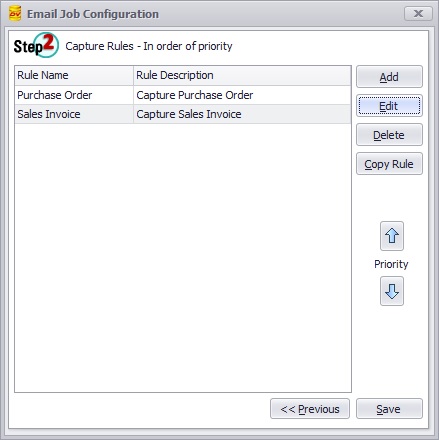 Capture Rules Configuration |
•Enter the rule name and description.
•Specify Capture Criteria:
oCheck the Capture All box to capture all emails in the specified email folder.
oSelect "Match all rules" to match all entered rules or
oSelect "Match any rule" to match any specified rule.
•Now enter the criteria to match. You can add more criteria by clicking on the green + icon on the top right corner of the rules grid.
•Specify Fetch From date to capture desired emails starting from specified date. Leave it blank to fetch all emails.
•Click Next to proceed to the filing setup.
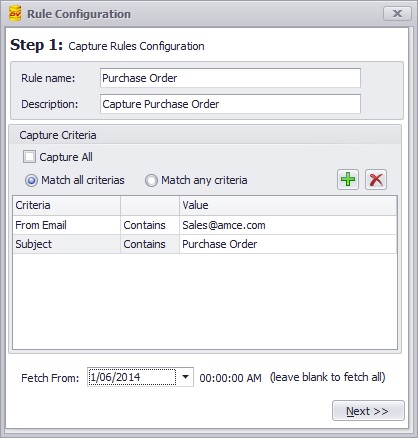 Capture Rules Configuration |
Step 2.2: Email Filing Configuration
•Email Filing Setup: Select this option to enable email filing.
oFile email to: Specify the location in Docsvault to save captured email messages. You can even use Dynamic Fields from the 'Dynamic Fields' drop down list box on the right. This will automatically file the emails into appropriate folders based on captured dynamic values. For example, a filing rule can be set to store email from different users in their own separate folders under the Communications\Emails folder (Communications\Emails\<<From Name>>). This will automatically file the emails from John Doe in the Communications\Emails folder under a dynamic subfolder named "John Doe".
oFile name: Captured emails are saved in the standard .eml format. The .eml file format is fully searchable and can be read in any standard email software. Define the standard file name and/or select the combination of dynamic fields to dynamically name the file based of its captured values. For example, <<From Name>>_<<YYYYMMDD>>
oEmbed attachments in email: Select this option if you desire to import the email messages along with its attachment embedded into the email message.
oProfile:This section allows you to set Profile values for email files to be imported. You can either select any email related <variable> like from, to, cc, subject etc. or enter a static value to be used.
•Click Next to proceed to the attachment filing setup.
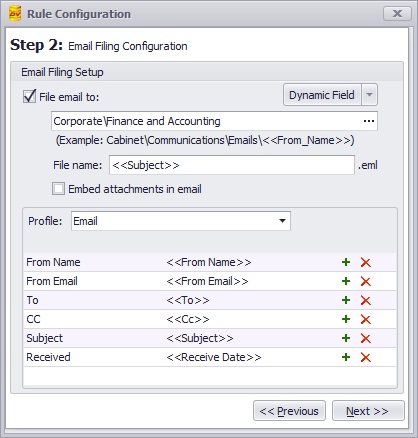 Email Filing Configuration |
Step 2.3: Attachment Filing Configuration
•Attachment Filing Setup: Select this option to configure attachments filing.
oFile attachment to: Specify the location in Docsvault to save the captured email attachments. Here too, you can define the location based on dynamic captured fields. Docsvault will take the attachment of the email and file them into the appropriate folders based on dynamic values.
oFile name: Define the standard attachment file name or select the dynamic fields to dynamically name the file based on its captured values. e.g <<Subject>> <<From Name>> <<YYYYMMDD>>
oFilter attachments by: You can filter attachments to be captured by its name or its file extension. e.g to save only PDF documents.(see image below)
oProfile:This section allows you to set Profile values for the attachment files to be imported. You can either select any email related <variable> like from, to, cc, subject etc. or enter a static value to be used.
•Click Save to save the email capture job.
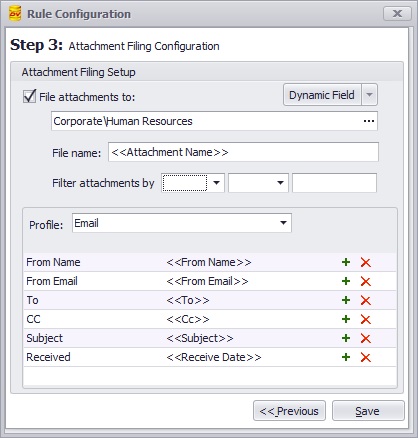 Email Attachment Configuration |