This section covers:
Creating a New Profile
Editing a Profile
Deleting a Profile
•Profiles can be created and edited from both 'Server' and 'Client' computers. To edit profiles from the client side go to Tools > Options > Profiles/Indexes dialog. |

To create a new profile you need to provide a profile name and then assign indexes to it.
•From the Administration > Profile/Indexes, click on New button to bring up the 'Create Profile' dialog box.
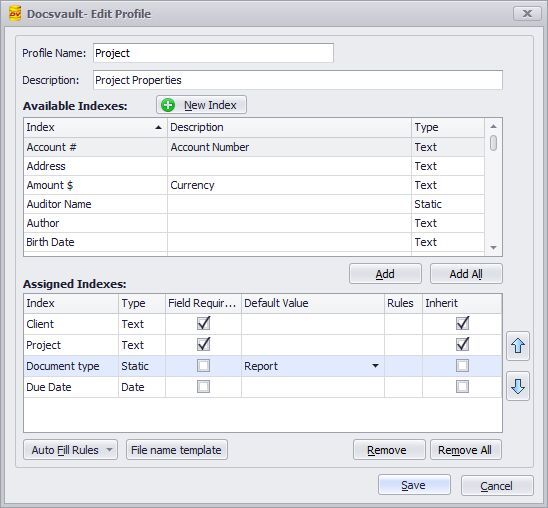 Creating or Editing a Profile |
•Assign a new 'Profile Name' and a short 'Description' about it
•Select each property from 'Available Indexes' list and click on Add button. The selected property will get added to the 'Assigned Indexes' section. For multiple selection, press and hold the Ctrl key while selecting.
•If you want to make it mandatory to assign a value to the index field, check the respective check box from 'Field Required?' column. Now this index's value cannot be kept empty when this Profile is being assigned to a document.
•Assign a default value to the property in the 'Default Value' column if desired. This is not mandatory but gives you an option to display and enter a default value for this index during the import process.
•Indexes that are set to inherit values from parent folders are indicated under 'Inherit' column. For more information, see Inherit Index Values.
•Auto Fill Rules. You can define the auto filling rules to fetch value lists for filling up profiles from external databases like your CRM, ERP, Accounting and other LOB applications. This option is available in Advanced Profiles add-on.
•File Name Template can be used to automatically name files and folders. Similarly document description and notes can be populated based on index values entered by users. For learn more, see File Name Template.
•Click Save button to save the profile
To include all the indexes in the profile, click "Add All" button below "Available Indexes" list box
|
•From the 'Profiles' tab, click on Edit button to bring up the 'Edit Profile' dialog box
•In the edit dialog box, make the necessary changes
•You can change the order of the displayed fields by clicking on the up and down arrows located near the far-right column of this screen
•Click on Save button to save the changes
To remove the property from the profile, click "Remove" button. This action is not reversible and you will permanently lose the data values for deleted fields. |

•Select the profile from the list and click on Delete button
•This will display the confirmation message
•Click Yes button to delete the property
You cannot delete the default 'General' profile. |
