Docsvault asks the user for creating a new version of a file at following instances:
•While importing, copying and moving of documents.
•While importing scanned documents.
•When a 'Checked out' document is 'Checked in'
•When importing a new version for a specific file
•To overwrite a document, you must have at least 'Overwrite/Delete' rights to the document or be the owner of the document.
|

Creating version while importing, copying and moving of documents
When a target location in Docsvault already contains a file being imported, copied or moved, the Confirm File Replace dialog box is displayed.
To overwrite the existing version with the new file select the radio button next to it. The dialog box would appear as shown below.
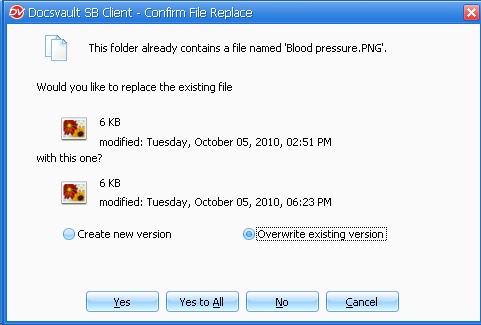 Confirm File Replacement - Overwrite existing version |
Click on Yes button to overwrite the file. Click on Yes to All to overwrite all the existing files.
•When you select to overwrite the file, the current version of the file gets overwritten.
|

To create new version of the file, select the radio button next to it. This will change the appearance of the dialog box to as shown below:
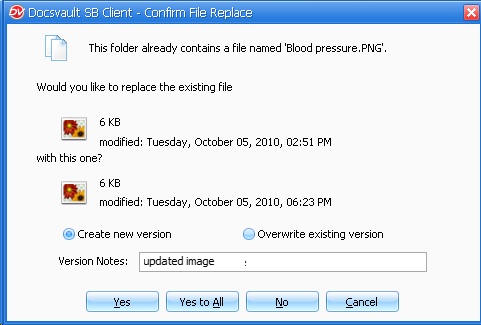 Confirm File Replacement - Create a new version |
Write a brief version note and click on Yes.
To create new version for all the existing files that are being imported, click on Yes to All button. This will add the same version notes to all the affected files.
For example: Consider a case where a file 'abc.xxx' has more than one version. Now, you choose to copy or move this file to some other location in Docsvault. Also at the destination, a file with the same name, 'abc.xxx' already exists and you choose to create a new version, then copying and moving behave differently in such a case.
|
•When a file is copied, a copy of the most recent version of source file is created at the destination. Also it gets the current version status at the destination.
•When a file is moved, all the versions of the source file are merged with the versions of the destination file. Also the most recent version of the source file acquires the current version status at the destination.
|
Creating version while importing scanned documents
After scanning, if you save the file with exactly same name and extension as that of an existing file. You will be presented with Confirm File Replace dialog box. Follow the instructions as given in above subtopic, "Versioning while importing, copying and moving of documents".
Checking In a document
•Check out a document for editing.
•Check in after editing has finished.
•This will bring up the Check in dialog box.
•If you want to create a new version, check mark the Create New Version check box. Otherwise the file will be overwritten.
•If you wish to save the new version in PDF format, check mark the SaveAs PDF.
•Enter a note related to the new version in the Version Notes related to the latest changes.
•You can add document notes, set/change folder section, initiate new workflow, and set/change document status flag while checking in a document.
•You can also notify the file owner, and/or other Docsvault users about the changes made while checking in a file.
•Click OK button to create a new version.
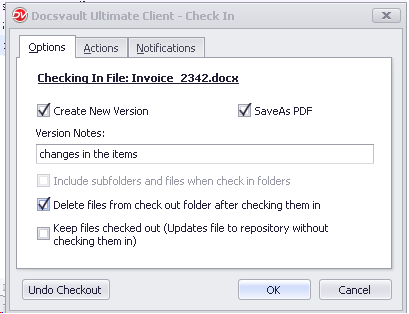 Check In a document |
Use Undo Checkout button to cancel checkout for a file. Any changes you have made in the local copy of the file will be lost.