Importing a new version of the same document in Docsvault
To import new version for an existing file
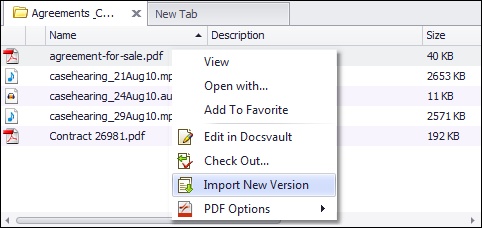
•Locate the file for which you want to import a new version.
•Right click and select Import New Version. Browse to the file from your system. Note that the file name can differ but the file extension should be the same.
•In Check-In dialog, you can add version notes, set actions: add document notes, set/change folder section, set/change document status, initiate new workflow, and even notify the owner and other users while checking in a document.
•A new version will be created for the selected document.
 |
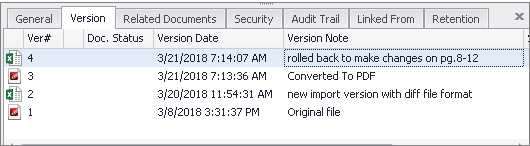
You can also import new version of a document of a different file format. Example: A PDF document can have a Word doc imported as a new version.
 |