The Content editing tools allows you to make changes to a PDF page content quickly and easily.
Edit Content Tool  to edit existing base content.
Add Text Tool  to add base content text.
First of all you need to choose the content object for editing:
•Select the Edit Content button from Tools > Content Editing Tools or click Content Editing drop down on the toolbar.
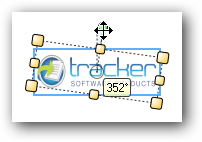
•Click the content item you wish to edit. If you need a certain area to be selected, click and drag the mouse. This will show a bounding box with selection handles around the object. The handles can be used for resizing or rotating the object.
To move the object, place the pointer to the central circle and drag the object.
 |
To resize the object, pull one of the yellow handles.
 |
To rotate the object, click and drag the green handle above the object.
 |
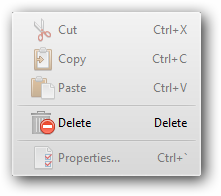
•If you right-click on the selected object, the following menu appears:
 |
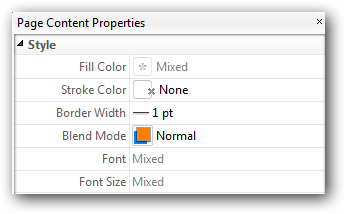
Properties. To adjust the properties of the selected object, click at the  arrow which appears when you select one of the
properties.
 |
The Add Text Tool will add base content text to a PDF. Click anywhere on the page to start typing. This tool makes use of the Text properties state of the Properties Toolbar.