The Docsvault main window is divided into 3 panels.
Left Panel
The Left panel is divided into two parts:
Tree view panel:
When users first logon to Docsvault the data folder tree appears on the left side. As the name suggests, the contents of 'Tree view panel' shows the content of the data folder in a tree type structure.
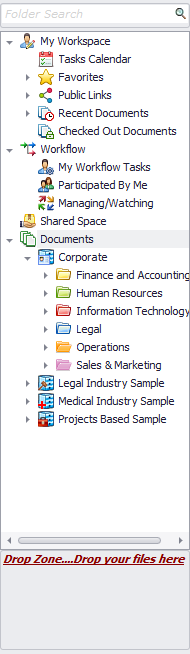 Left Panel |
Folder Search
To save time and effort, use the Folder Search box to quickly search a folder stored somewhere in a cabinet. The Folder Search box is located at the top of folder section in the left panel.
In the tree, there are 4 root nodes or base containers. Users can set their preference for these nodes visibility from Tools > Others.
My Workspace
The My Workspace node in the left tree view panel allows you to quickly access user specific documents.
It provides access to your:
oTasks Calendar
oPublic Links
oRecently Documents
oChecked out documents
Workflow
The Workflow node displays the list of workflow tasks that are assigned to you as well as tasks that you have already performed.
Shared Space
This node provides a full overview of all documents shared with the user and by the user.
Documents
You can store, organize and manage all the documents in cabinet and folder structure here. Administrators group members can customize the main 'Documents' node by changing it to a more relevant name.
Individual user and Administrators group members can configure the visibilities of these nodes.
Center Panel
It consist of List view panel.
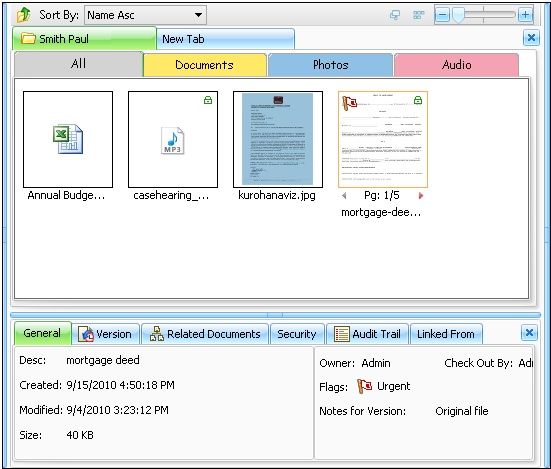 Center Panel |
List view panel
When a cabinet or folder is selected in the tree view panel, all it's content files and folders are displayed in a list form in the list view panel. You can even sort and filter the list by hovering your mouse over any column header and choosing the sort or filter icon.
Quick Search option is directly accessible from the sub toolbar of the main Docsvault window.
Bottom panel
The bottom panel in the center panel displays general, versions, related documents, security, audit trail and linked from information for any selected file or folder. You can double click and view the related files directly from here.
Right Panel
Left panel is divided into three parts:
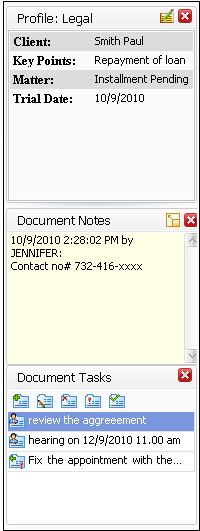 Right Panel |
Profile view window: If a file is selected from the list view panel, it's corresponding profile is displayed in the Profile view panel.
Document Notes window: To add and view the notes attached to the file.
Document Task window: Document Task Panel displays a list of tasks assigned to documents. |