Creating a New Workflow using Form Wizard
A workflow creation process can be divided into following steps:
General: Basic Workflow Details:
•Workflow Name: Enter a sensible name for the workflow
•Workflow Description: Enter a description for the workflow
•Workflow Steps: While creating a new workflow you have an opportunity to create all workflow steps by simply entering the steps name separated by a comma in the Steps box. You will be able to edit or add more steps later on if required. Click on the Skip button to create steps one by one.
•Click on the Add button to create the workflow steps. For details on configuring steps see how to add a workflow step.
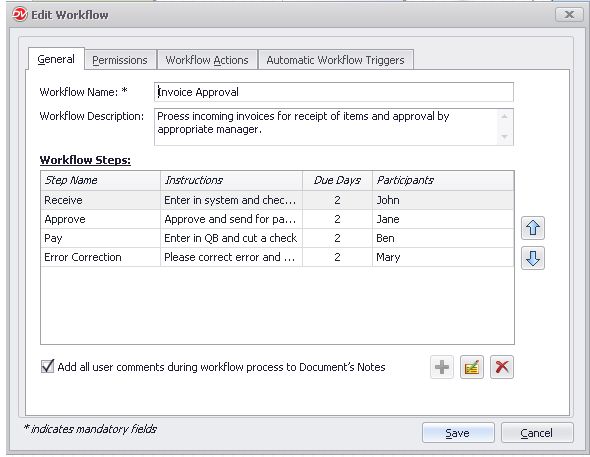 |
•Use the arrow keys along the right side of the dialog to change the order of the steps. The order of the steps (except for the first step) is not important since transitions are flexible enough to allow jumping to any step within the workflow. However, ordering the steps properly is very useful in understanding the flow of the entire process.
•You also have an option to append user comments during workflow to document notes of the main workflow document. Enable 'Add all user comments....'
When a workflow is initiated, it is moved to the first step listed here.
|

Assigning Permission & Roles
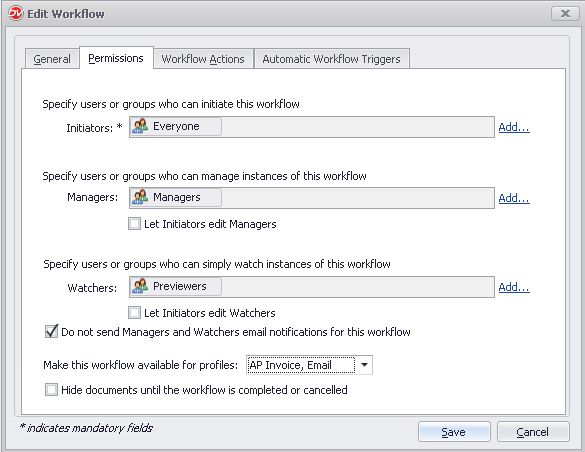
When you create a workflow, you also determine which users and groups will perform different roles. These roles are Initiators, Participants, Managers, and Watchers
Initiators:
A workflow Initiator is any user or group that can start a workflow on a document. All members of the 'administrators' group can also start the workflow process by default.
Managers:
Mangers are users or groups that can supervise the entire workflow and have the privilege to transition or cancel a workflow at any point. If the Initiators are to specify the managers for instances of this workflow, select Let Initiators edit Managers check box.
Watchers:
A workflow Watcher is any user or group who can monitor a workflow process. Watchers will be able to view the ongoing progress of a workflow, however, they are not participants and therefore cannot perform any action on the workflow. If the Initiators are to specify the watchers for instances of this workflow, select Let Initiators edit Watchers check box.
|
 |
Email Notification:
Enable 'Do not send Managers and Watchers email notifications for this workflow' option if you don't want to send automated email notifications to Managers and Watchers when a workflow is canceled or completed.
Associate Workflow with Document Profiles
Associating a workflow with Document Profiles will make this workflow available to only those document that have one of these profiles assigned to it.
For example, a invoice document could require approval by a manager before the transaction can be complete. To make sure that the Invoice Approval workflow is always available when the 'billing' Document Profile is attached to a document, click on the list box next to 'Make this workflow available for profiles' and select the 'billing' profile.
Hide documents until the workflow is complete or canceled:
Enable this option to hide the workflow documents from file lists so that users not involved in this workflow cannot access this document till the workflow process is completed or canceled. Workflow participants will be able to access or edit workflow documents directly from the workflow dialog on the client side. Such an option is very useful while changing a price list or policy document though a workflow process and access to it needs to be restricted while the document is under revision.
The flexible workflow in Docsvault allows you to define actions that can be performed on documents by the system automatically when a workflow is initiated or canceled.
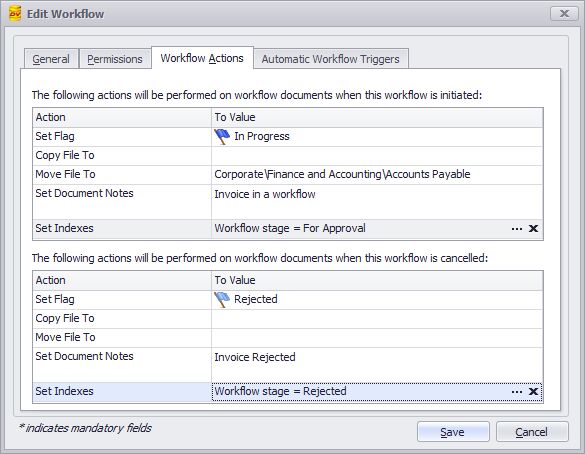 |
•Set Flag: Changes or clears a document flag
•Copy File To: Makes a copy of workflow document to specified location
•Move File To: Moves the workflow document to specified location
•Set Document Notes: Adds document notes
•Set Indexes: Sets or clears document indexes
|
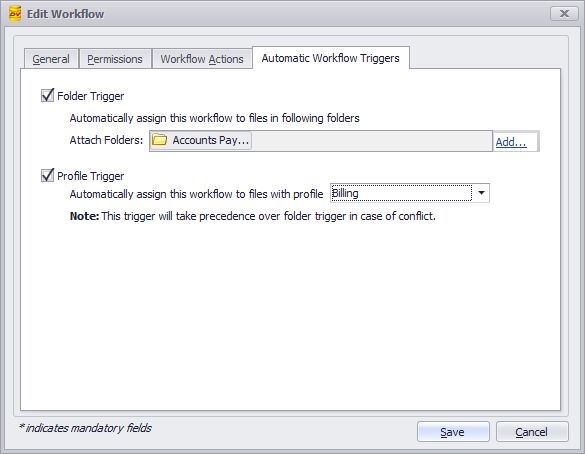
Apart from being initiated manually, workflows can also be started automatically using the following triggers:
Automatically by Folder
Folder Trigger: Enable this option to automatically start this workflow for documents on the folder specified. Select the location of the folders by clicking on Add link. You can add as many folder as you wish to this list. When a new documents are added to the specified folders, this workflow will be automatically assigned to those documents.
Automatically by Profile
Profile Trigger: Enable this option to automatically start the workflow for documents that are assigned this Profile. Select the Profile. When the selected Profile is assigned to a document, this workflow will be automatically assigned to that document.
|
 |