Alerts Notification
Docsvault has a powerful built in Alerts Notification System. The alerts engine can perform several different tasks throughout the Docsvault system.
The alerts notification system allows Administrators to:
oset administrative email alerts for server status that can be sent to multiple email addresses
oautomatically email new or reset passwords to Docsvault users
obroadcast any system downtime or system usage tips, conventions or changes to all Docsvault users in one shot
The alerts notification system allows Users to:
oset their own email notifications of selected activities on any file or folder that is important to them
oget update alerts for changes to tasks and work routes they are involved in
oquickly email any document as an attachment from right within Docsvault using the Quick Email feature without going through their default email program
This system ensures that both the users and the Docsvault administrator can stay informed about changes happening to documents or tasks that are important to them.
This section covers the procedure to configure and set the email alerts system.
Email Setup
The first step you need to take to start using the alerts system is to configure outbound (SMTP) email server. Docsvault can use any standard SMTP server that you have access to. .
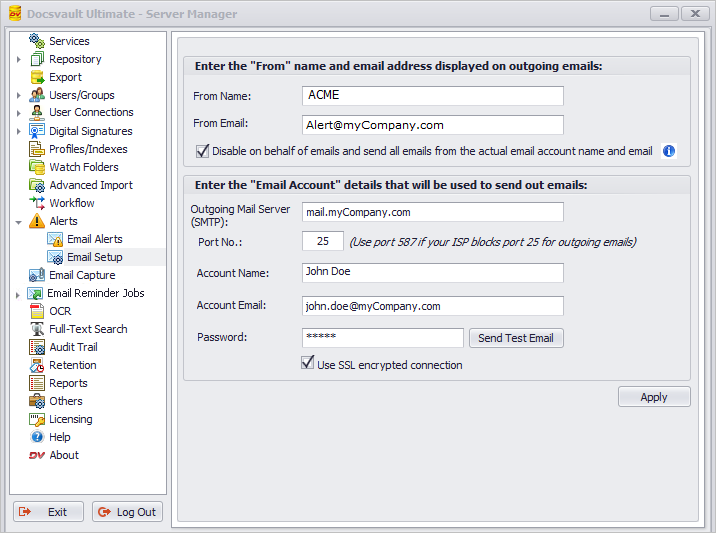
Select Alerts > Email Setup option in the Docsvault Server Manager. You may also set this up from the desktop or web client from under the ‘Administration’ menu.
•Enter the From name and email address that you wish to appear in administrative e-mail messages sent out by Docsvault. This means some email clients will then display your outgoing email address - such as dvAmin@myCompany.com. as sending emails on behalf of other from addresses. Note that your SMTP server may or may not support sending out emails on behalf of other email addresses.
 |
‘Disable on behalf of emails…’: Docsvault will send out emails using the actual “email account”, but in the “from” field, it will use either the user’s email address where appropriate or the one specified in the “From” section for administrative emails. However, this feature may be blocked by your ISP or mail provider. In such cases, enabling this option will always use the actual Account Name & Email address in the 'From' field of the outgoing email messages.
•In the Outgoing mail server box, type the full name of the SMTP mail server provided by your ISP or mail administrator. Often this is in the form of 'mail.yourdomain.com' or 'smtp.yourdomain.com'
•In Port No. box, enter SMTP port number. The default value is 25. However, some ISPs block this port. If this is the case for you, use the alternate port number 587 or the one provided by your ISP
•In Account Name, enter the name you have set for your email account
•In Account Email & Password, type the complete e-mail address and password. Make sure to include your user name, the @ symbol, and the domain name, for example, john.doe@myCompany.com.
•Click Send Test Mail button to verify that your settings are working by confirming that you get a test email to the email address specified for this test
•Select SSL encrypted connection check box for secure encrypted connections if your ISP supports this feature and you wish to use it
•Click on the Save button to save the details
 |
Email Setup |
Email Alerts
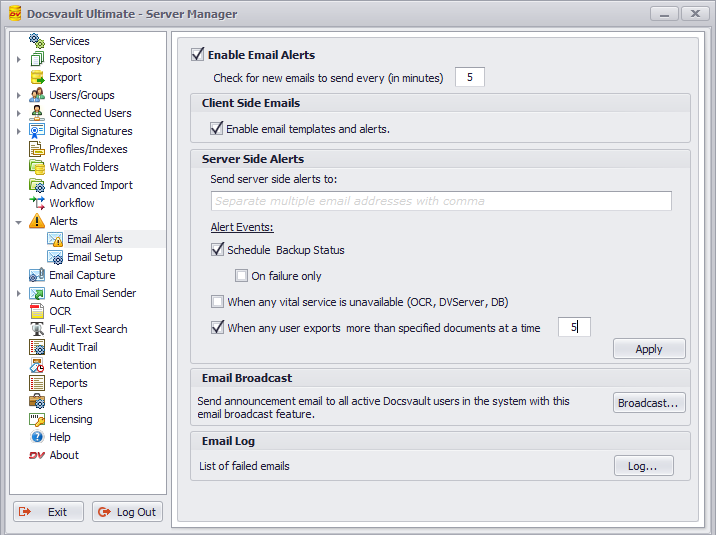
This node will allow you to enable and configure the email alert system.
 |
Email Alerts |
•Select Enable Email Alerts checkbox to enable the email alerts system
•Set the frequency at which the alert system should check for new emails queued and waiting to be sent out
•In Client Side Alerts, select the checkbox to allow the user to send quick emails and to set email alerts on document and folder for the events such as: View, Import or Scan, Copy, Export, Check Outs,Check Ins, Audit Settings Change, Profile or Index values change, Security Change, Deletes, Restore from Recycle Bin, Overwrite, etc.
•In Server Side Alerts, enter the email addresses that will receive email alerts for the following events occurred on the server side:
▪Schedule Backup Status: select this checkbox to monitor this event and send the email alert to the above mentioned email address when backup is triggered
▪On failure only: select this checkbox if you want to receive an alert email only if the backup fails
▪When any vital services is unavailable: select this checkbox if you want to be notified by email on failure of important Docsvault services such as Docsvault OCR service, Docsvault Server service and Database service
▪Select the checkbox next to When any user exports... and specify the number of document in the text box to set an email alert when any user tries to export more than specified number of document at a time.
Broadcast message to all Docsvault users
Broadcast e-mails are an effective way to communicate with Docsvault users in your organization. Docsvault allows you to send bulk e-mails to Docsvault users. For instance, you can send update notification e-mails to everyone making them aware of new or changed content, system downtime or system usage tips.
Email Failure Log: This log provides a checklist for troubleshooting possible causes for email failure send through Docsvault system.