|
OCR Status |

  
|
|
OCR Status |
|
|
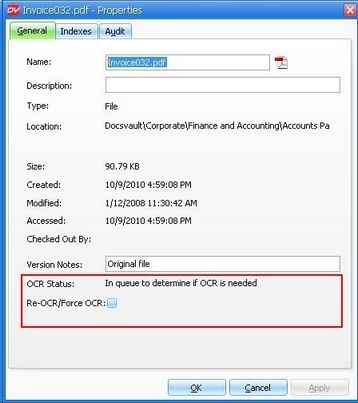
The following list explains the message displayed for OCR Status.
File not marked for OCR as per settings This message means that the file has not been marked for OCR while scanning.
In queue for OCR This message means that the file has been marked and added in queue for OCR process.
Skipped Text based PDF This message means that there is text content in the PDF file and the OCR process has skip the PDF file and will keep it in its original form.
In queue for forced OCR / Re-OCR This message means that file has been marked and added in queue for OCR.
Failed This message means that the OCR process has been failed on the file due to some reason. For example. if the OCR process finds any text content in any imported PDF file, it will skip that PDF file and marked it as Failed to OCR. The corrective action will be selected the file and try once again to Re-OCR/Force OCR from File Properties dialog box.
OCR complete This message means that OCR has been complete on the file.
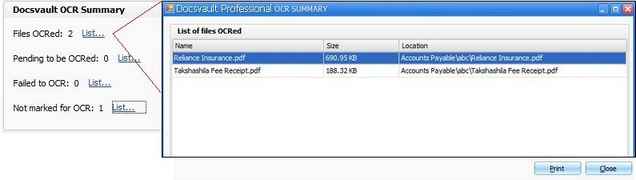
The OCR process runs in the background as a separate service on the machine. You will be able to get the updated OCR status of a file from the File Properties dialog box as well as you can keep track of OCR Summary from the OCR node in Tools > Advance Settings.
OCR Summary - Tools > Advance Settings.
Page url: http://www.docsvault.com/online-help/professional/index.html?ocr_status.html |