|
Copying and Pasting text
Docsvault PDF Editor provides you several ways to manipulate text in PDF document. Copy and Paste is one of the feature that allows you to edit PDF content.
You can paste text in the same PDF document, on a new blank page in the same document, on a page in another PDF document, or in another program document.
 Important: Important:
| • | If the PDF document is restricted against copying text, the cut, copy and paste options would be unavailable. |
|
Copying Text using Select Text tool
The Select Text tool lets you select and copy a piece of text to the clipboard, and paste it into another format file, such as word, notebook or any other application.
To copy a piece of any PDF file to text format.
| • | Click Select Text toolbar button  or select Edit > Select Text. or press Ctrl + E. or select Edit > Select Text. or press Ctrl + E. |
| • | Highlight the text to copy. |
| • | Select Copy toolbar button  or Select Edit > Copy. or Select Edit > Copy. |
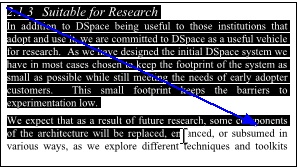
|
Select text
|
Pasting text on a page in the same PDF document or in a different PDF document in Docsvault.
| • | Select the Insert or Edit Text from Tools menu or click on Insert or Edit Text toolbar button  or press Ctrl + T. or press Ctrl + T. |
| • | Click on the page where you want to paste the selected text. |
| • | Select Paste toolbar button  or Select Edit > Paste. The text is pasted at the selected location. or Select Edit > Paste. The text is pasted at the selected location. |
Copying Text as object using Edit Object tool
You can also copy text using Edit object tool. When you copy in this manner the text is copied as an object, but text attributes remain in effect. Text copied in this manner can only be pasted back into the PDF document you cannot paste the text into any other applications such as MS Word.
To copy text as an object:
| • | Choose Edit> Edit Object or click on the Edit Object toolbar button  . . |
| • | Click on any text block, a blue box will appear. |
| • | Press Copy button from Edit section of File toolbar or Select Edit > Copy. The text is selected as an object. |
 Tip: Tip:
| • | You can select multiple block of text by pressing Shift key and clicking additional blocks and copy them to the clipboard |
|
Pasting text on a page in the same document.
| • | Choose Edit> Paste or click on the Paste button from Edit section of File toolbar |
| • | The object gets pasted on the location. |
 Note: Note:
| • | You can copy text in blocks using Edit Object tool to preserve the formatting including tabs, indentations, etc. |
| • | If you copy and paste on the same page using Edit Object tool, it will overlap the original object. You have to manually |
select the object and move it to the new location.
|
Copying from PDFs to other applications
Docsvault Pdf Editor allows you to copy to other application documents using the 'Select Text' or 'Insert or Edit Text' tool.
Pasting text in other applications.
| • | Open the other application e.g. MS Word. |
| • | The text is pasted in the other application. |
Note:
| • | Select Text tool and Insert or Edit text tool can only copy text, and once the text is copied to another file, you can edit it. graphics and text formatting are ignored. |
| • | Click outside the highlighted area to deselect the text. |
|
Tip:
| • | If you want to copy a piece of text as a graphic or remain the file’s original format, you can use Snapshot Tool to grab what you have seen. |
|
Page url:
http://www.docsvault.com/online-help/professional/index.html?copy_text.html
| 


