|
Checking Out and Checking In Documents |

  
|
|
Checking Out and Checking In Documents |
|
|
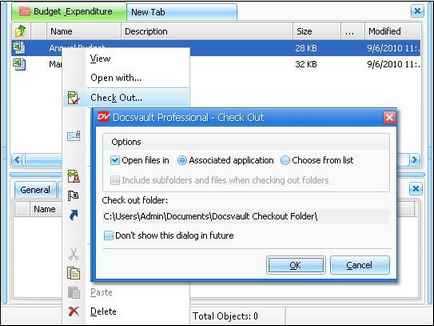
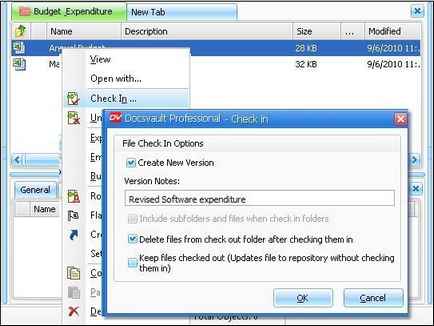
Documents stored in Docsvault can be viewed as read-only by default. They can be opened for editing by Check Out and then the changes saved by Check In. Using the Check In and Check Out features ensures that documents are not overwritten by you. These are the methods by which you can better control when a new version of a document is created and also comment on changes made when a document is checked in This feature also enables you to monitor the complete history of a document.
You can check out documents, undo check-outs, and check in documents. When a document is checked out, it is saved in the checkout folder. This folder is set by the you in Tools > Options > Checks In/Out. While the document is checked out, you can only save edits to this local folder. When you are ready to check the document in, the document is saved back to the original location.
Page url: http://www.docsvault.com/online-help/professional/index.html?check_in_out.html |