|
Exporting to CD/DVD
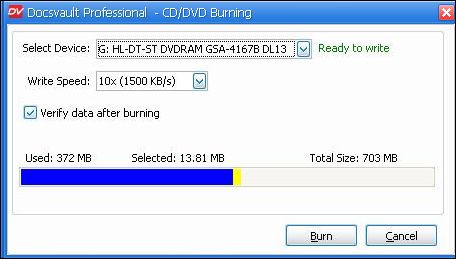
Use the Burn to CD/DVD option to export any selected files and folders to CD/DVD.
| • | Select files and folders to be exported to CD or DVD. |
| • | On the File menu, select Burn to CD/DVD to display the 'CD/DVD Burning' dialog box Or |
Right click on the selection and from the pop up menu click on
|
Burning to CD/DVD
|
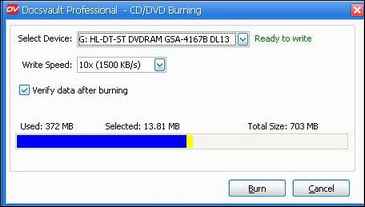
| • | our CD/DVD writing drive will be automatically detected by Docsvault, select the writing device. |
| • | Select a writing speed and then click on Burn button to start the burning process. |
| • | To verify the data after burning, click on the check box next to it. |
 Note: Note:
| • | You can set the default setting for burning in Options from Tools menu. You can also choose not to see the burning form every time and start burning directly - however in this case you should keep the CD/DVD media ready in the default burning device.
|
|
Page url:
http://www.docsvault.com/online-help/professional/index.html?burn_to_cddvd.html
|