This section covers:
oInstallation of Program Files
Configuration of Docsvault Server (Database)
oInstalling MS SQL Server Express Instance (default)
oSpecifying your own MSSQL Server
oConfigurating Docsvault Administrator
Docsvault does not need any special server grade computer if you are a small group of 5 - 10 users. You can designate any dedicated PC with a good processor, ample Memory (8 GB+) and enough available hard drive space for storing files imported in Docsvault. It is recommended that the Docsvault server be installed on a dedicated machine where no user works normally. This will avoid interference from other user interactive applications and prevent any possible performance deterioration.
|

•MS SQL Server 2022 Express: |

This procedure outlines all of the steps necessary for you to perform a brand new installation of Docsvault.
Part I - Installation of Program Files
•Log in to Windows using an account with administrative rights (or rights to install software)
•Run the installation file Docsvault_<edition>_Server.msi and follow the on screen instructions
•On the License Agreement page, read the license agreement and if you accept the license terms click on I Accept, and then click the Next button.
•Select Installation Folder: Installation folder contains the program files for Docsvault Server application. By default the installer will choose 'C:\Program files\Docsvault <edition>\ Server\'. You can change the location of program folder by clicking on the Browse button. It is recommended that you keep the default path as this folder will contain only the program files, NOT the actual data imported into Docsvault.
•Click on Next button to go to the 'Confirm Installation' window.
•On completion click the Close button. You can now launch the Docsvault Server Manager from the desktop icon to start the server configuration wizard.
|
Part II - Configuration of Docsvault Server
When you start the 'Docsvault Server Manager' for the first time after installation, the 'Server Configuration Wizard' will start automatically. This wizard includes the following steps:
Step 1: Installing/Selecting a Database
First you will be asked to specify a Database. You can either specify your own Microsoft SQL to host the database or allow Docsvault to install a new Microsoft SQL 2022 Express instance on your machine.
❖ Letting Docsvault install a New MS SQL Server Express Instance
•Select this option to allow Docsvault to install a MS SQL Server 2022 Express instance
•Specifying Docsvault Administrator User Password
Enter a password for Docsvault administrator user 'admin'. Note: that the same password will also be used for a SQL user named 'DVSBSA' inside the sql database. This user DVSBSA is used to connect clients to the Docsvault database hosted by the SQL server. This is done for the sake of simplicity during initial configuration. You may change the Docsvault 'admin' user password to anything later on from the Server Manager dialog.
•At least 10 characters long but 14 or more characters is even better. Include at least 1 letter, 1 number, and 1 special character. Docsvault supports passwords up to 140 characters.
|

•Selecting Database & Documents Location
The installer will create a 'DVSB Data' folder at the location specified for Data Storage. Select a drive that has plenty of free space available as this folder will grow in size as more and more documents are imported in the future.
Note: Due to SQL server database limitations, networked shared folders and NAS devices cannot be used to store Docsvault data. We recommend that you use an internal hard drive to store your data as they are more reliable than the external hard drives.
•Click on Next button to continue.
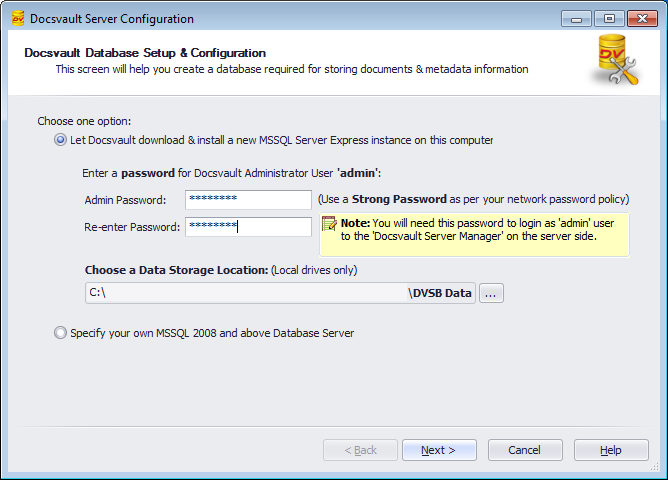 Installing New MSSQL Database |
❖Specifying your own MSSQL Server 2014 and above Database Server
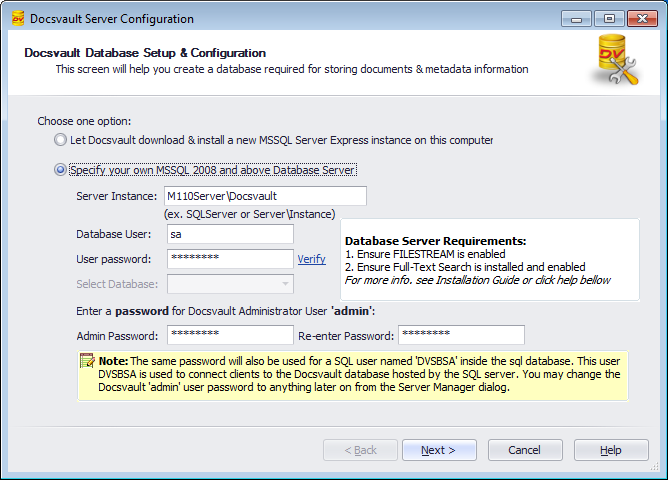 Using Existing MSSQL Database |
•Select the option to 'Specify your own MSSQL ...' to use your existing MSSQL Server. You can choose to use your own SQL Database 2008 R2 and above servers. See database requirements below.
•Click on the 'Browse network instances...' link to display all instances of the Database Engines installed on your network.
Note: You can also specify the server instance by typing it manually in SQLServer\Instance_Name format if the 'browse instance' does not list the desired database that you know is running and accessible.
•Enter the username and password of a SQL Server user who has permission to create database tables, and click Verify.
Docsvault verifies the credentials and checks the database server for the required text search filters for common file formats.
If the required iFilters are not found, Docsvault displays a warning identifying the missing search filters.
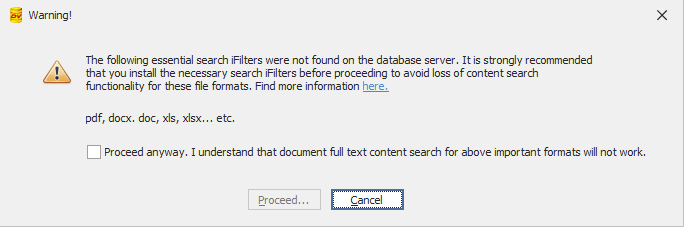 |
The warning lists the document formats affected by the missing iFilters and recommends installing the required filters before continuing.
To continue without installing the required iFilters:
•Select Proceed anyway
•Confirm that full-text content search for the listed document formats will not work.
•Click Proceed.
Warning: If you proceed without the required iFilters, full-text content search will not work for the affected document formats. Install the required iFilters before proceeding if you want full-text search for those formats.
•From the list, select the database to create Docsvault data tables in. If you choose a database that already has Docsvault data in it, setup will automatically attach to that database.
❖ Database Server Requirements when using your own MSSQL Server
Database Server Requirements
Docsvault needs either an empty database or a database with Docsvault data in it. Databases that have some other data in them cannot be used.
Your SQL Server must meet the following requirements for Docsvault:
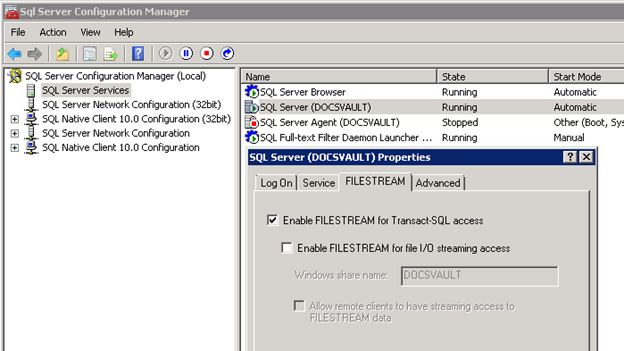
•FILESTREAM must be enabled •Full-Text Search must be enabled. •Required iFilters must be installed and enabled for supported document formats. 1.Ensure FILESTREAM is enabled: •Open SQL Server Configuration Manager (Start > Programs > Microsoft SQL Server 2022 > Configuration Tools > SQL Server Configuration Manager)
•Navigate to the SQL Server Services node and from the right pane open the properties dialog for the SQL Server service from its right click menu. •Click the FILESTREAM tab and select the checkbox to enable FILESTREAM for Transact-SQL access.
2.Ensure Full-Text Search feature is installed and enabled: 3.Ensure proper search iFilter are installed Full-text (content) search in Docsvault requires an iFilter to be installed on the server hosting the Docsvault SQL Server database. They are not required on client/workstation machines.
Windows includes iFilters for some formats out of the box; others must be installed separately.
•.doc, .docx, .xls, .xlsx, .ppt, .pptx - Supported when Microsoft Office is installed on the SQL Server machine. If Office is not installed, you can install the Microsoft Office 2010 Filter Pack (free, no Office license required).
•.pdf - Modern Windows operating systems include support for PDF indexing. If PDF files are not being indexed, install and register a supported PDF iFilter. •.msg - The Microsoft Office 2010 Filter Pack support for Outlook (.msg) files. If .msg files are not indexed, install Microsoft Outlook 2010 or later, which registers the required MSG iFilter. •.eml - Supported using the built-in Windows MIME iFilter; no additional installation is required. •Additional File Types: Install the appropriate iFilter for the required file type from IFilter.org or IFiltershop.com.
For SQL Server 2025, external iFilters are managed using the Version 2 Full-Text Search component system and version_overrides.json. Refer How to Enable External iFilters in SQL Server 2025 for installation and configuration instructions. |
In the Admin Password text box, enter the password for Docsvault Administrator User 'admin'. Note: that the same password will also be used for a SQL user named 'DVSBSA' inside the sql database. This user DVSBSA is used to connect clients to the Docsvault database hosted by the SQL server. This is done for the sake of simplicity during initial configuration. You may change the Docsvault 'admin' user password to anything later on from the Server Manager dialog.
Docsvault cannot backup user specified database. Therefore it is the responsibility of the end user to regularly backup the database using other backup tools on their SQL server. |
Docsvault Database Backup Configuration
This step will allow you to set the backups for Docsvault database. The backup location can be on a Local drive or Network share or NAS drive.
By default, following schedule is set by Docsvault (ref the image below) which can be changed at any time directly from the Windows Task Scheduler.
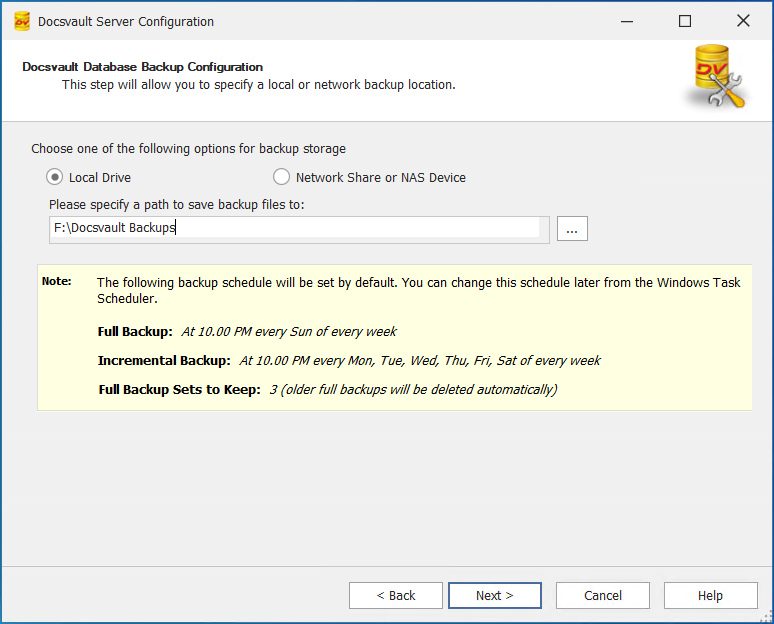 Backup Configuration |
•Clicking on the Next button will display the summary of Docsvault Server configuration.
•It is important that you make a note of the user names and passwords on this page.
•Sample Database Selection:
You can choose a pre-configured database template to match your organization's needs.
oBlank: No predefined folders or profiles. Recommended for organizations building a fully customized structure.
oGeneral: Includes a standard folder structure and commonly used profiles to get started quickly.
oLegal: Preloaded with folders and profiles tailored for law firms and legal practice needs.
Note: You can always customize or expand on these template after installation.
• Windows Firewall Configuration:
oThe installer automatically adds essential Docsvault services and executable to your system’s Windows Firewall exception list.
oThis helps prevent connection issues and ensures clients on your network can access the server without manual firewall adjustments.
•Install PDF iFilter
PDF iFilter is required to enable full-text search within PDF files. Enable this option to allow the system to automatically install iFilter on older operating systems. This ensures that the content of PDF files can be properly indexed and searched in Docsvault.
•You can save this summary page as a PDF by clicking the "Save As PDF" link for future reference or technical support.
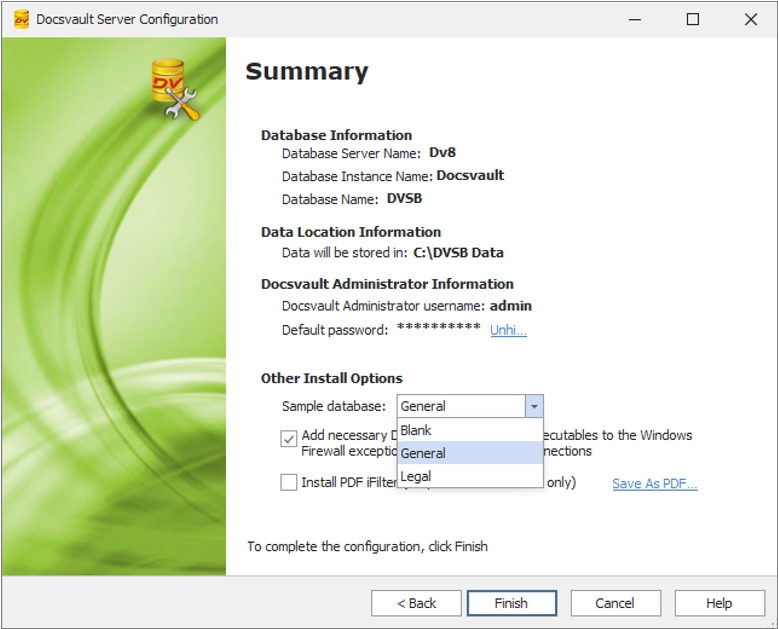 Installation Summary |
•Click on the Finish button to complete Docsvault Server configuration. The configuration and necessary installation will now start and you will see the following progress window.
If you let Docsvault installer install the SQL Server express on this machine, it may take up to 30+ minutes to complete the download, installation and configuration process depending on your download and CPU speed. Please be patient during this process and refrain from using other programs during this install.
|
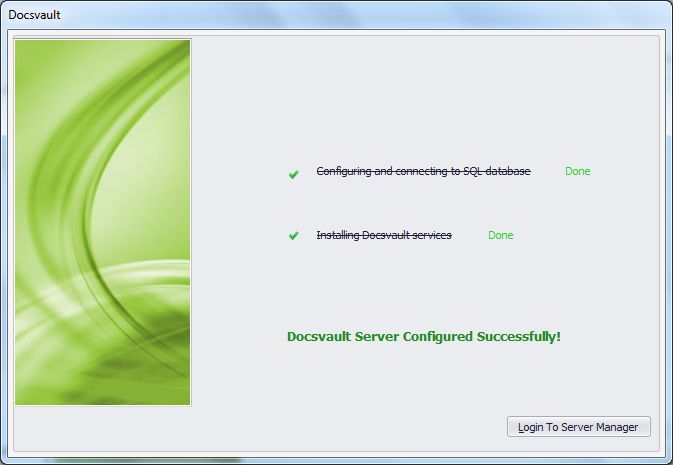 Docsvault Server Configured successfully |
If you have need any more information while installing or configuring MS SQL Server, click here .
Once the Docsvault server is installed and configured, it is now time to install the clients on the network.
|
Client Installation Wizard
On each workstation you wish to install the client on, run the Docsvault_<edition>_Client.exe from the downloaded installation package and follow the on screen instructions
Select Installation Folder
•Installation folder contains the program files for Docsvault. By default the program files will be copied to 'C:\Program files\Docsvault <edition>\Client\'. You may change this location if you wish, however we recommend that you accept the default names and structures provided during installation
•Click on Next button to go to the 'Confirm Installation' window.
•On completion click the Close button.
Learn how to enforce Two-Factor Authentication to securely login to Docsvault.