Two-Factor Authentication Configuration
Two-factor authentication adds a second layer of security to your Docsvault login accounts. Using a second factor to verify your identity prevents anyone but you from logging in, even if they know your password.
How to Enable Two-Factor Authentication for Your Team
Administrators can enable 2FA for all users in their organization.
•In Docsvault Server Manager, select Login Security under User Connections node OR
Select Login Security under Administration > Manage Users menu in Docsvault Desktop or Web Client application.
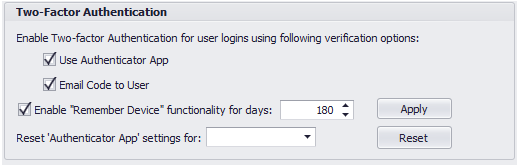
•Enable Two-Factor Authentication Options:
Under Two-Factor Authentication, choose the appropriate verification options. The enabled options will be activated for every user of the system.
oUse Authenticator App: Selecting this option will allow users to get their verification code on their authentication app like Google Authenticator, Microsoft Authenticator, Authy, etc. on their smartphone.
•The next time users sign in to Docsvault, they will be guided through the setup process on their next login. |

oEmail Code to User: Enable this option for users to receive their verification code through email. The verification code is sent to the user’s email account specified in their profile in Docsvault.
•You will need a working outbound Alert in Docsvault for this to work. |
•Remember Device:
Admins can make Two-Factor authentication protection even easier for users while maintaining good security practices throughout their organization with the Remember Device feature. This eliminates the need to provide second factor of authentication on trusted devices. Admins can specify the number of days this functionality should be remembered on any device.
With the remembered devices feature enabled, the user is offered a “Remember me for ….” Checkbox during login. When users check this option, they will not be prompted for the second authentication again from that device for the specified period.
•Click on the Apply button to save the settings.
Two-Factor Authentication Reset Option:
The administrator can reset the 2FA for a specific user. This is helpful, for example, if users have completed the 2FA enrollment process, but for some reason, they cannot log into Docsvault successfully or they do not have access to the mobile device they used at the time of 2FA setup. Once their 2FA is reset, Docsvault will guide the user through the setup process on their next login.
Learn how to Setup Two-Factor Authentication at User level.