This guide explains how to merge multiple PDF files into a single file efficiently.
Quickly Merge Two PDF Files
You can quickly merge two PDF files using drag-and-drop.
Merge two PDF files into a single file:
•Select the PDF file you want to merge.
•Drag and drop one PDF file over another.
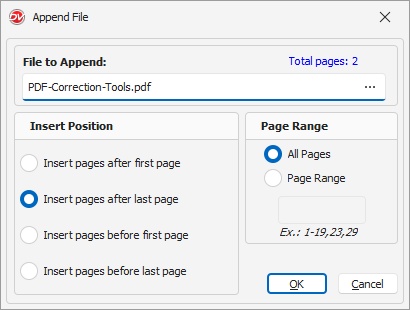
•Choose an option to append or prepend file including page range selections.
oSelect the 'Page Range' to append.
oChoose the 'Insert position' where the pages should be merged.
•Click OK to merge the files.
 Quickly Merge PDF Files |
Drag-and-Drop PDF Merge
PDF files can also be merged or appended by dragging one PDF onto another in normal File Lists, Search Results or Recent Lists.
Merging Multiple PDF Files
To merge multiple PDF files into one single file
•Select the files to merge.
•From the PDF Options menu select Merge Files OR
Right click on the selected files to open its context menu and then click on PDF Options > Merge Files.
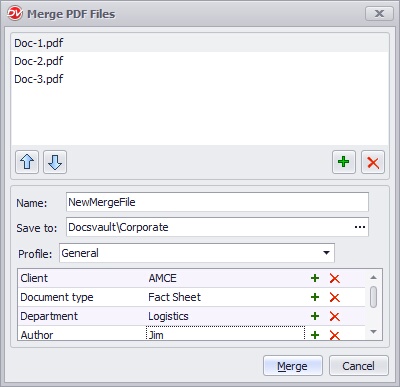
•The Merge PDF Files dialog will be displayed. Here you can add, delete or re-order files to be merged.
•Enter the file name for the new merged file to be created.
•Select the location to save the new file. By default the current folder is already selected for you..
•Assign and enter the 'Profile' details for the new merged file.
•Click Merge button to create the new merged file.
 Merge Multiple PDF Files |