The Favorites section provides quick access to folders, files, and saved searches that you have marked as favorites. You can access Favorites from My Workspace in the left panel.
Favorites in the Left Panel
The Favorites node in the left panel provides quick access to your favorite items as a list in the center panel.
Expand Favorites to view:
•Favorite Folders - displays folders that you have marked as favorite.
•Favorite Files - displays files that you have marked as favorite.
Select Favorite Folders or Favorite Files to display the corresponding items in the central listing panel.
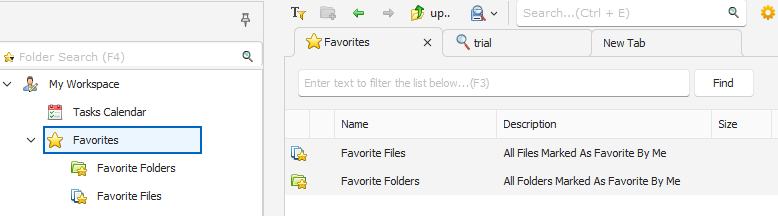 My Workspace showing Favorites |
Managing Favorites Toolbar Visibility
You can control the visibility of the Favorites Toolbar by navigating to View > Favorites Bar.
The Favorites Toolbar is located directly beneath the main icon bar at the top of the interface.
When the toolbar is hidden, favorite items are accessible from a dropdown list near the folder search box in the left panel or from My Workspace > Favorites.
 |
Add folders and files to Favorites
You can add files and folders to Favorites from the file and folder listing or from the Favorites toolbar.
From the File and Folder Listing
•Right-click the folder or file you want to add.
•Select Add to Favorite.
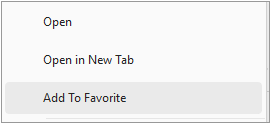 |
From the Favorites Toolbar
•In the Desktop client, click Manage Favorites.
•Add the required files or folders in the respective tab.
Favorite files and folders are available from the Favorites section in My Workspace for quick access.
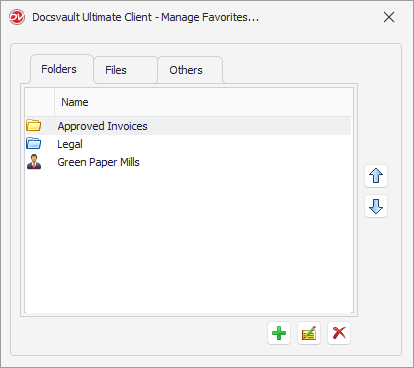 |
Add Saved Searches to Favorites
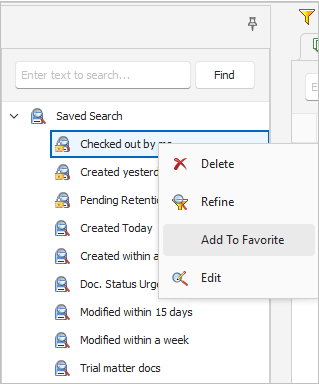
•Navigate to the saved search in the Search tab.
•Right click the saved search.
•Select Add to Favorite.
The saved search will now be accessible in your Favorites Toolbar.
To rename or rearrange your saved searches, use the Others tab in the Manage Favorites window.
 |
Quick Access to Created and Modified Files
Users can instantly access their Created and Modified files from the Favorites Toolbar, reducing the need for extra navigation.
Arranging Favorites
•Favorite folders and files can be organized in any order.
•By default, items appear in the order in which they were added. To change the order, select an item and use the Up or Down arrow in Manage Favorites.
You can also add frequently used My Workspace nodes to the Favorites Toolbar for quick access.
Renaming a Favorites Item
In the desktop client application, you can rename favorite folders or files without changing its original names or locations.
Removing a Favorites Item
•In the Favorites Toolbar, click the Manage Favorites.
•Select the items you want to remove.
•Click Remove Favorites.
Removing an item from Favorites does not delete the original file or folder. It only removes if from your Favorites.