You can select multiple files and folders at a time and perform following actions:
oMove
oCopy
oDelete
To select one or more files and folders
•Tap More option button on the bottom menu bar.
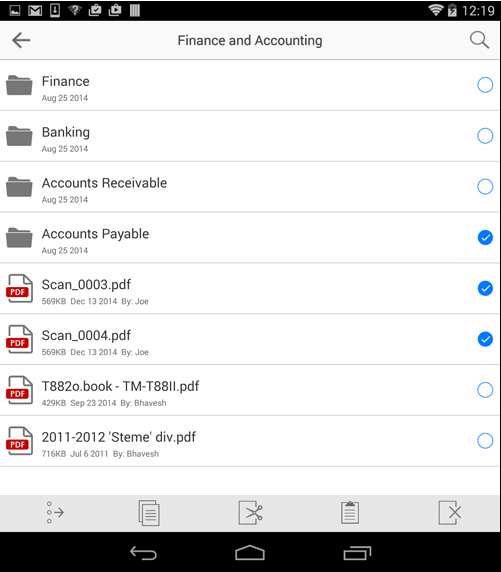
•Check boxes are displayed to the right of each item in the list. To select an item, tap the check box next to it.
•Tap Copy  or Cut
  button. In both these cases, Docsvault copies the items you selected to your clipboard.
•Navigate to the destination folder, then tap Paste button.
The same operations can be performed by selecting Edit button from the top right corner in iOS device.
 |
•All document under the folder must be checked-in prior to moving it to a different folder. •If the destination is under a folder or cabinet that does not support any current profiles assigned to any documents within this folder, those profile values will be lost permanently.
|

•Tap Delete  to remove the selected files and folders from Docsvault repository. You can use restore documents from your Recycle Bin using Docsvault desktop or web client.