Sharing files with anyone
The Public Share Links feature allows you to share a file/folder as a link to anyone outside the organization i.e non-Docsvault user.
You can customize various security settings for your message before sending files to your external users.
•Only users with system rights of 'Create Public Link' and a minimum of 'Export' rights on a file can create a Public Link for it.
|

•You can create a share link from Share Link under My Workspace > Public Link node on the left panel of the Docsvault interface.
•Click New button or directly right-click on the file/folder to open its contextual menu and select Share Links.
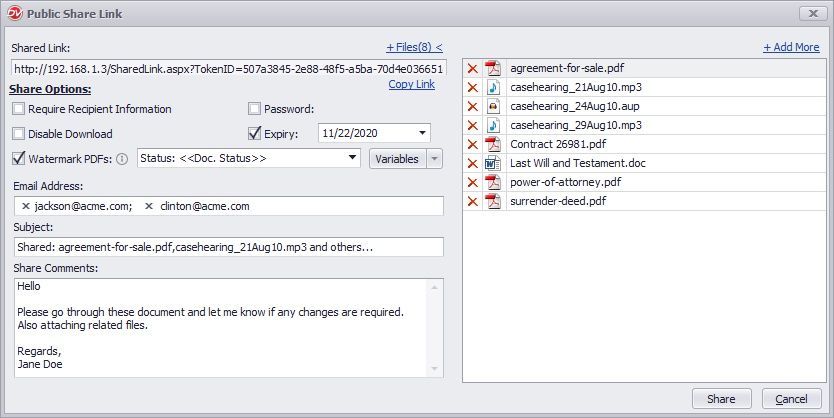
•A pop-up dialog will appear with your shared link. You can copy the URL and paste it into an email, instant message etc., or use Email Shared Link option to send email via Docsvault to your recipients.
•Depending on how secure you want to keep a link, you can set your Share Options:
oRequire Recipient Information: Useful for tracking access when sending files to external users.
oPassword: If you're sharing sensitive documents, you can control who can see your link by adding a password.
oDisable Download: Select this option to restrict download access for link viewers.
oExpiry: Set how long you want the shared link to be accessible. If you select this option, by default it will be valid for 30 days. You can anytime adjust the default expiration date of your link.
oWatermark: Select this option to have a visual watermark applied to PDFs shared online. Docsvault will automatically insert a desired watermark when a user previews the shared document online or downloads it.
You can set watermark using static & dynamic variables such as:
▪Document Profile Index : Expiry Date: <<Expiry Date>> Expiry Date 10/22/2020
▪Date: Valid on "<<MM-DD-YYYY>>" Valid on "10-22-2020"
▪Time: Viewed at <<HH:mm:ss>> Viewed at 16:15:32
▪Document Version#: Version# <<Doc. Version#>> Version# 2
▪Document Status: Status: <<Doc. Status>> Status For Review
To easily re-apply any previous watermark pattern, click on the drop-down list to select from the last 10 watermark patterns used before.
Note: Watermark will not be applied to PDFs that are digitally signed or secured to disallow edits. These documents will not be visible for preview and would not be downloaded from the share interface.
NOTE: Administrators can also mandate the use of watermark option from the server side by going to Docsvault Web Manager > Configuration > Public Share Link section. Admins can either enforce a predefined watermark or choose to allow users to specify watermark text while creating a public share link see more here
|
•Add more files: Click +Files link to expand the dialog. This right panel will list all the files selected for sharing.
oTo include additional files for sharing, click + Add More link.
oTo remove the file from sharing, select Delete icon next to the file. Note: This option is not available when you share a folder.
•Email Shared Link: Allows you to customize your email message:
oEmail Address: Enter a Recipient for your message.
oSubject: Enter a subject for your message.
oShare Comments: Customize your notification email message.This comments will also be visible in the shared link page.
•Click Share when ready.
Each recipients will get an email message with the shared link to the files. Note: Docsvault will check for new emails to send as per the schedule set by an administrator in Docsvault Server Manager > Email Alerts node.
 |
Your links are secure! When you share a link, each URL is unique and Recipient never get access to any other documents outside of what is explicitly shared with them. They only have read rights on shared files and cannot make changes or add files to shared folders.
•If you publish the link on a website, anybody can use the link. You may want to set a password or an expiration for your link.
•When you choose to create a link to a folder, only the first level of files of the folder will be accessible from the link.
•You can also share older version of a document in additional to the most current version from Version History •To avail the feature of emailing, enable 'Client side Alerts' in the Docsvault Server Manager.
|
