Searching documents using Profile Search
Profile Search allows you to quickly locate documents based on their metadata.
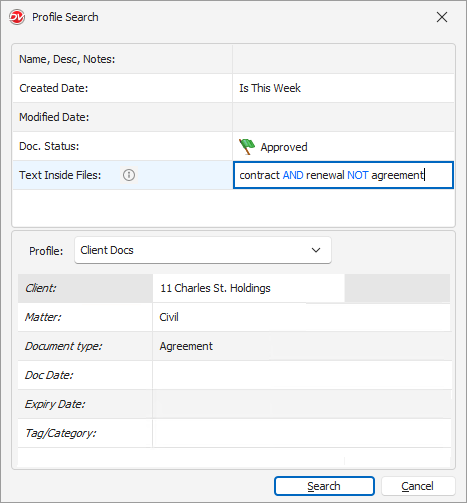
For example: To locate an agreement related to a specific matter for a particular client, you could use the "Client Docs" profile and specify search criteria in multiple profile indexes and other fields as below: |
•Click the Profile Search icon in the toolbar.
•Select Profile: Choose the relevant profile from the drop down list.
•Index Fields: Input keywords or values into the desired index fields. For instance, if you're searching for documents created by "John Doe," enter "John Doe" into the "Creator" index field.
•Search in Other Fields: Expand your search to include fields like name, descriptions, notes, created or modified date, or document status.
•Text inside files:
oSingle Word: finds all forms of the word.
Example: Search for contract will find contracts, contracted, contracting. Using a wildcard, law* will find law, laws, lawyer, lawsuit, lawful.
oMultiple Words: finds words within 3 words of each other.
Example: duty negligence
This will return documents where the words "duty" and "negligence" appear within three words of each other, such as:
▪The defendant breached their duty, resulting in negligence.
▪One must first prove a duty existed to establish negligence.
oTo find exact word or exact phrase enclose them in quotes
Example: “negligent homicide” will only return results where those two words appear together as an exact phrase.
oBoolean search supports (AND, NOT, OR) for more definite text queries.
Example: "contract AND renewal NOT agreement" finds documents with "contract" and "renewal" but excludes documents with "agreement".
oProximity Search: Locates terms that appear close to each other.
Example: word1 W/10 word2 (find word1 within 10 words of word2)
oInflectional Search: Automatically finds different tenses and plural/singular variations.
Example: Searching "run" returns "run," "running," "ran," and "runs".
•Click the Search option.
By combining these search criteria, you can effectively narrow down your search results to find the desired documents.