Editing images in PDF Files
This tool contains groups of controls to improve the images output in a PDF file:
•From the PDF Options menu select Image Correct and Redact OR
Right click on the desired PDF file to open its context menu and then click on PDF Options > Image Correct and
Redact.
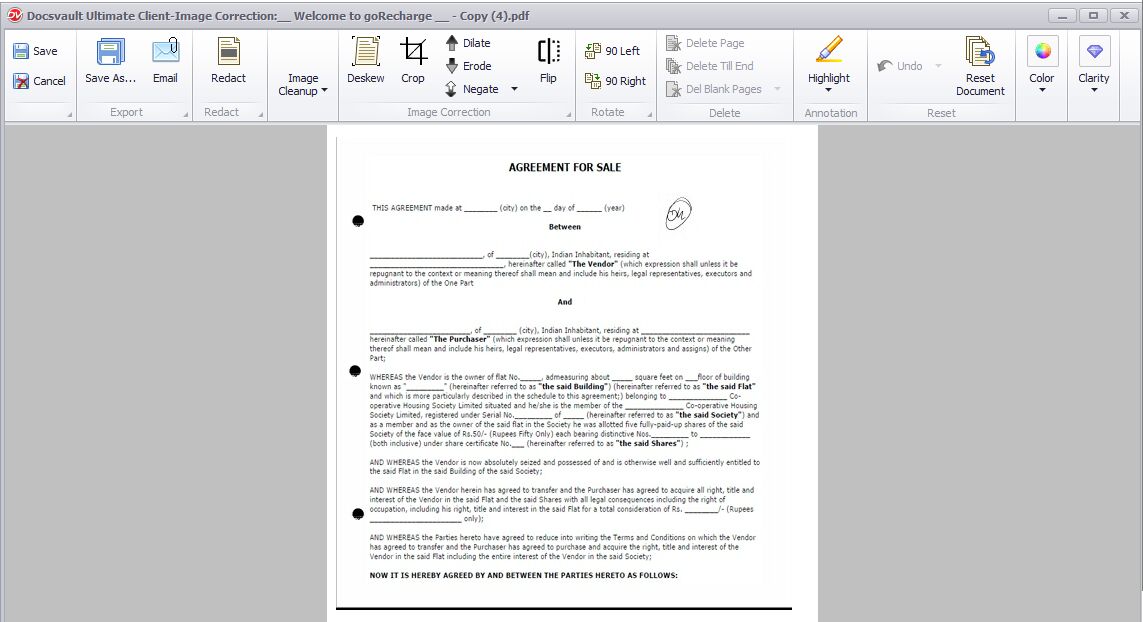 PDF Correction Tool |
In the viewer, use the following controls to apply corrections to image file.
Redact: Redacting a PDF file allows you to hiding sensitive information keeping your document's formatting intact.
•Choose Redact tool from the toolbar
•Draw a rectangle around the desired portion that you wish to redact. A blur image will be drawn over the selected area. You can undo the current redaction using the Undo button before saving the document. Note that redaction is burned into the image and will become permanent once the document is saved so when this PDF is shared with other people it will never show up the redacted information to them by any means. However you can get back to the original document by reverting to the document's earlier version if needed.
Image Cleanup: Following controls are available under this group
Edge Fillup: This tool allows you to change or fill up page edges with the desired color. This is useful to remove black edges placed around a scanned page by some scanners.
•Use Setting from Edge Fillup drop down menu to set the color and margin for the four sides of the page borders
•Then click on Edge Fillup button to fill up page border edges with the desired color
•Select Apply to All from Edge Fillup drop down menu to fill the page edges on all pages
Remove Punch Hole: This tool allows you to remove punch hole marks from document.
•Choose Remove Punch Hole button to remove punch hole marks on the current page.
•Select Apply to All from Remove Punch Hole drop down menu to remove punch hole marks from all the pages in the document
Despeckle: Use the despeckle removal filter to delete unwanted black pixels from image automatically.
Erase: Lets you to remove extraneous marks from a PDF document.
•Choose Erase button and and then drag the eraser over the area of the picture that you wish to erase
Remove Border: Use Remove Border to remove borders from the current page.
Image Correction: Following controls are available under this group
Deskew: Use the Deskew to automatically straighten an image that is skewed.
Crop: Cropping lets you resize a PDF page
•Click Crop button, you will see the "Crop" dialog box which will show the margin specification for the cropping rectangle for the current page
•Adjust the height and width margin to adjust the page size. Click 'Apply' to apply the crop size on the current page
•Selecting 'Apply to all' will apply to all the pages of the document
•'Reset' option will reset the crop size
•Click on 'Close' button to close the dialog box
Erode: The Erode control enhances the dark areas of the image.
Dilate: The Dilate control enhances the light areas of the image.
Negate: The Negate control will invert the image to look like a photo negative. This basically means the colors are opposite
•'Select Area': Select this option from Negate drop down menu to negate only the select area in a page
•Apply to all': Select this option from Negate drop down menu to apply negate effect on all the pages in a file
•Clicking Negate button directly will apply the negate effect on the current page
Flip: The Flip control will help you mirror images vertically
Rotate : Helps you to rotated the selected page to 90 degree to left or right.
Delete: Following controls are available under Delete group
To delete a single page
•In the viewer, select the page that you want to delete
•Go to Delete group, click Delete Page
To delete from the selected image to the end of a document
•Select the page that you want to start your delete from
•Select the Document tab and go to Delete group, click Delete Till End
The selected image and all subsequent images are deleted from the document
To delete blank pages
This option allows you to delete blank pages. You can specify the ink density threshold in 'Treat as blank... '. This will check the percentage of blank matter on a page. If it is greater than specified, it will treat that page as blank
Highlight: This tool allows you to highlight interesting or important parts of a document.
Reset: Following controls are available under this group
Undo: You can undo the editing actions step by step
Reset Document: You can undo the editing actions and restore the selected page to its original state when it was opened
Clarity: In the Clarity group, you can apply corrections that affect the clarity of the selected image
Contrast: Change the Contrast setting by adjusting the slider. The Contrast setting affects the amount of difference between the lightest and darkest areas in an image.
Brightness: Change the Brightness setting by adjusting the slider.
Gamma: Change the Gamma setting by adjusting the slider. The Gamma setting affects the conversion of light intensity into pixels. This setting is best used with color images
Color: In the Color group, you have controls to change the color modes. Click one of the following color modes:
To B&W: This will convert a grayscale or color image to black and white. The file size for a black and white image is considerably smaller than it is for grayscale or color images.
To Grayscale: The will change color images into grayscale.
Export: In the Export group, you can email or save changes to your edits to your computer directly from the Image Correct and Redact window.
•Text-based pages edited in Image Correction tool are converted to images first. To convert them back into searchable PDF, mark the file for Re-OCR from its file properties dialog.
|
