Assigning Rights to a Document
Any new documents created in Docsvault will automatically inherit the rights defined for its parent cabinet / folder. Docsvault allows you to customize the security rights or select from the predefined Template.
Administrator or the Owner of the document, may alter these default (inherited) permission settings.
When Owner change the permission settings for a document, they may only grant permissions to users who are members to the cabinet/folders in which the document reside.
Make sure that you also select the appropriate access type from the drop down list box.
•Select the document you wish to assign rights and then right click to bring up the popup menu.
•Click on the Properties to open the Properties window.
•In the Properties window, click on Security tab.
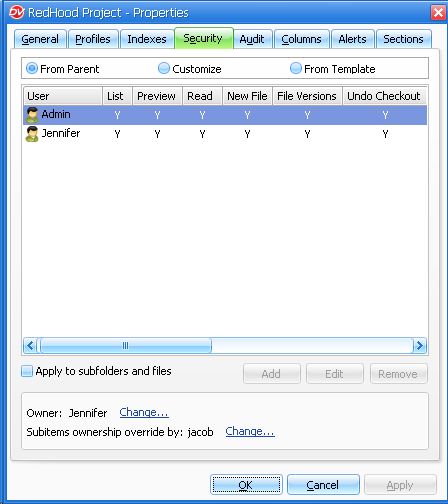 |
•Select the appropriate access type:
From Parent:
This feature allows the setting of security inheritance at the folder level. Once a folder is set to inherit its security from a cabinet, all subsequent sub-folders will automatically inherit their security settings from the parent folder. Use this option in instances where you plan on giving the same set of users identical rights in most of the sub-folders below. You can always go to any folders that are the exception and adjust their security accordingly. But using inheritance will save you the time of having to apply the same security to multiple places.
Customize:
If you wish to maintain a different set of rights for different individuals documents depending on the sub-folder, use Customize.
Even if you had chosen to use inheritance From Parent, you may undo this by navigating to the folder in which you wish to discontinue inheritance. Display security settings by navigating to the "Properties" and selecting "Security". In the "Security" tab, Customize. This will allow you to assign a customized set of security that does not depend on the parent folder's security settings.
From Template:
This option allows you to assign from predefined set to security structures without having to enter detailed settings manually. Administrator can define multiple Security templates for folder and file structures in Document Management Server.
•Click on appropriate button to add, edit or remove the rights.
•Apply to subfolders and files: Setting this option while assigning permissions allows you to specify that a sub folder or a file should inherit its permission list from its parent folder. This is optional, but recommended, because it dramatically reduces the time needed to apply security to child folders.
•Owner: You can change the ownership of the existing documents by selecting this option. For instance: In the Screenshot below, the ownership of the existing file/folder will be owned by the user 'Jennifer'.
•Ownership Override Setting: By default, any user that imports or creates a file or folder in Docsvault becomes the owner of that document. However in many cases it may be desired that the ownership of such documents stay with a higher level user like a manager of an administrator. Using this ownership override feature you can specify a user who will own all documents created by this user. For instance: In the Screenshot above, the ownership of file/folder imported by any privilege user '' will be owned by the Overriding user 'Jacob'.
Documents Securities
Location Based Security Rights
The following securities can be applied to Cabinets, Folders and Files from the Docsvault Client application by members of the ‘Administrators’ group, users/groups with ‘Change Security’ rights and document ‘Owners’.
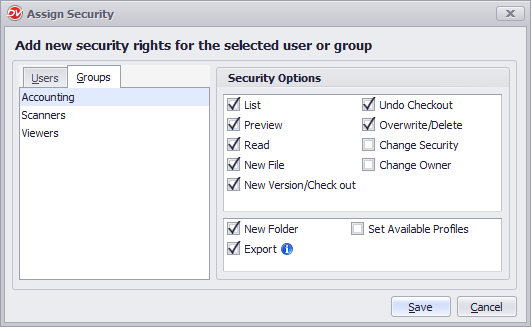 Files and Folder Rights |
As seen in the screen above, these rights can be assigned to both users and groups. The following explanation mentions users only for simplicity of understanding.
List
Users with this right can only list the documents. They will not be able to see the contents of the documents nor the associated notes and tasks. Such a right is useful when there is a need to give rights to a user/group to a deep sub-folder only and prevent them from seeing or accessing contents of any other folder in the folder hierarchy.
They can set new document relation and create document links (shortcuts).
To view the contents of a cabinet or a folder in Docsvault, you must at least have the 'list' security right on the cabinet/folder. |

Preview
Users with this right can preview supported files formats inside Docsvault Preview Panel. They will only be able to see the contents of the documents but will not be able to edit them.
To view the contents of a file in Docsvault, you must at least have the 'Preview' security right on the file. The Preview right is also the best suited right for preventing users from taking information out of Docsvault while still allowing them to see contents of any image or PDF file. |
Read
Users with read-only access have the ability to view documents, audit trails, and version history. They can also assign tasks to others, add comments to documents, print, email, and export individual documents. However, they are restricted from adding, checking out, or modifying existing documents.
The difference between Preview and Read rights is that users with read right can view any type of file by opening it up in its default application (e.g.. opening a .doc file in MS Word application) where as users with preview rights can view only supported files format inside Docsvault Preview Panel.
New File
Users with this right on any folder will be able to import, scan and paste a new file within that folder. However, they cannot overwrite an existing file or create a new version of it.
New Version/Check Out
In addition to all above rights, users with this right will be able to create a new version of any file, move/cut documents, rename files/folders, remove document relations, edit document descriptions & version notes, assign document status, folder sections, append pages to exiting PDFs, digitally sign PDF documents and change the document's profile values. However, they cannot overwrite or delete an existing file; they have to create a new version in order to add information to the document.
Undo Checkout
Users with this right can override the checkout lock that is placed on a document automatically when a document is checked out by any user.
Overwrite/Delete
Users with this right have the ability to delete, overwrite files, change document status and edit document notes.
Change Security
Users with this right can change the security settings of a document and add files and folders to shared space.
Change Owner
Users with this right can change the ownership of the documents.
Change Owner is a special right and even document owners cannot remove users/groups with this right from the security of any file or folder. This rights can be used to assign ownership to a cabinet or major folder to say department managers or power user so that they will always have elevated access to all contents of a cabinet or folder.. |
New Folder
Users with this right will be able to create a new folder.
Export
Only users with this right will be able to export documents outside Docsvault such as drag and drop to the local computer, printing document from the Preview window, export document, and sending documents as email attachments. A minimum of read right is required to enable the export right.
The export right will basically prevent mass export of data from Docsvault. However If a user has right to 'read' any document, he/she can export it indirectly by just opening that file in any external application and then use ‘save as’ to save the file outside of Docsvault or use the print function to print that document. |
Set Available Profile
Users with this right have permission to change available profile under a folder (applies to folder only).
Version Ownership
Users can delete versions and edit version notes created by self. This right is automatically granted to users creating a new version.
Document Ownership
Users that can import documents into Docsvault are considered as Document Owner. They are automatically assigned all the above rights except Change Security and Change Ownership rights. This means that even Document Owners until unless assigned can't change the document ownership nor remove users/groups from the security of any files or folder.
Document Owners can add files/folders to shared space, delete versions and edit all version notes.
System Features Rights
Depending on the functionality of an individual or group within the organization, a user/group can be assigned rights to the following special features in the system that are not based on files and folders.
|
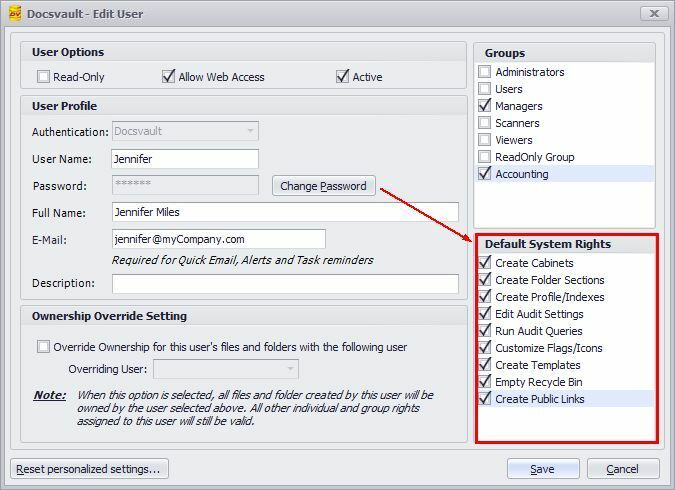
Create Cabinet
Users with this right can create a new cabinet. Since cabinet is a main level of organization, it is recommended that only few people have this right in the organization.
Create Folder Sections
Users with this right have can create sections for any cabinet and folder throughout the repository.
Folder sections are virtual partitions of a folder and not real sub folders. For example, a patient folder can have different sections such as History & Physical, Reports, Doctor's Notes, Claims, etc... |
Create Profiles/Indexes
Users with this right can create and edit profiles and index fields.
Indexes are custom fields that you can create to assign more information to a document or folder. Profiles are simply a group relevant indexes suitable for certain purpose. For example, an 'Account Payable' profile could have index fields like Vendor, Invoice Date, Amount, Due Date, etc. |
Edit Audit Settings
Users with this right can enable and set logging of any specified events or actions performed by any user. You can set audit settings multiple files, folders or even entire cabinets.
Run Audit Queries
Users with this right can query the audit log of all events performed on documents marked for audit logging
Edit Doc. Status/Icons
Users with this right can add icons to represent folder and also create new document status, edit or delete existing ones.
Create Templates
Users with this right have can create predefined folder, file, security, audit, email and profile templates which can be applied to files and folders being imported into Docsvault.
• Templates are predefined set to structures that can be used when necessary without having to enter detailed settings manually. You can define multiple templates of folder and file structures and properties like security, allowed profiles and Audit Trail settings. |
Empty Recycle Bin
Only administrators and users with the 'Empty Recycle Bin' right will be able to permanently delete a document from the Recycle Bin.
Create Public Links [Enterprise & Ultimate Edition]
•Users with 'Create Public Links' and minimum 'Export' rights can:
a. create unique public links to files and folders inside Docsvault and share it over the internet
b. create and send signature requests to get document signed from non-Docsvault users
•Users with 'Create Public Links' and minimum 'New File' rights on a folder can create and share Document Request Link for it.
Create Workflow [Enterprise & Ultimate Edition]
Administrators and any users with this right can create and edit workflow process.
Create eForm [Enterprise & Ultimate Edition]
Users with this right can create their eForms and share it over the internet with internal and external users. Administrators can access and edit eForm of any users.
Create Email Reminder Jobs [Enterprise & Ultimate Edition]
Administrators or users with this right can create email reminder jobs.
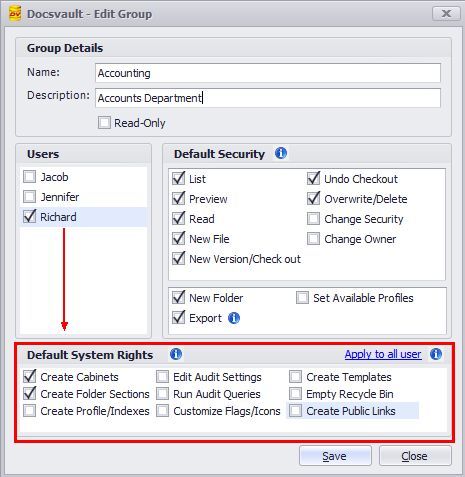
The following example describes how users may be practically assigned rights to perform specific tasks. Let's say you want to assign most of the available folder permissions to a group of users in the 'Accounting' group on the 'Accounts' folder, but you only want to give the departmental manager the permission to set and monitor audit trail logging that records all actions performed by any user on the 'Accounts' folder.
In this case the departmental manager should be a part of the Accounting group, but for purposes of his/her role as a manager, this user should be assigned the 'Edit Audit Settings' and 'Run Audit Queries' system rights to enable him/her to set and query the Audit Trail logs
|
You can refer Security & Rights Summary Table for the summary of location based rights & system rights.
Best Practices Recommendation
When assigning security rights, use only groups if possible. This makes it easier to add a user to the document management system. As a member of a group the user will inherit all of the permissions and access that the group has throughout the system.