Built-in PDF Editor
Docsvault PDF Editor is a significant component of Docsvault, designed to make it easier to review and edit pdf documents supporting annotations, text editing, image editing and even vector drawing and thereby creating high-end output.
Features of Docsvault PDF Editor
•Open, view and print PDF documents
•Fill up a PDF form, edit and add text and images to PDF documents
•Add comments and comment text with customized stamps, notes, shapes and text boxes and share them in PDF Editor
•Select the text or image and snapshot an area to copy to the clipboard
•Extract OCR'd text from PDFs
•Append, merge, split, delete, reorder, crop and extract pages from a PDF document
|
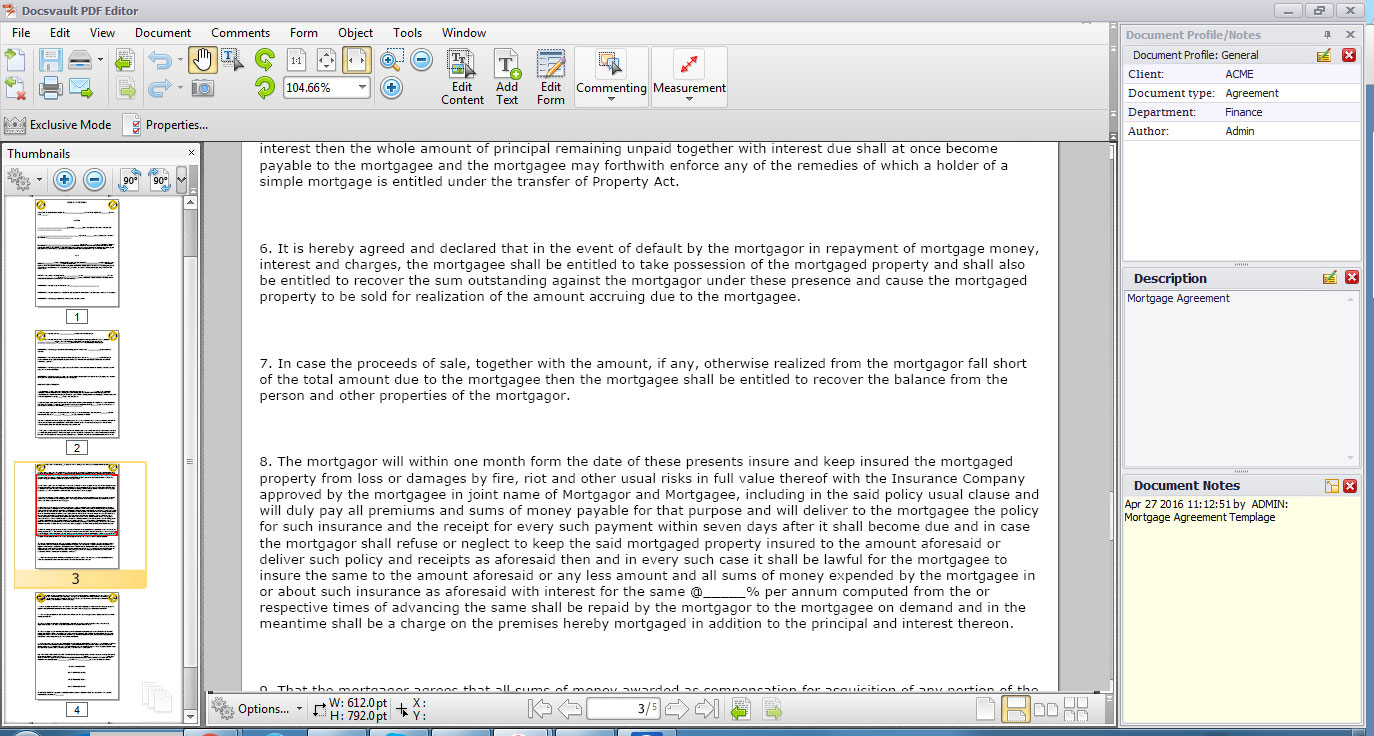
Editing a PDF document
•Select the document to be edited.
•From the File menu, select Check Out Or
From the list view panel, right click on the document and click on Check Out Or
From the Tool bar, select PDF Options > Advance Edit.
•This will check out the document. You can open the document in the associated application for editing or you can choose the appropriate program from the list.
•You can set Docsvault's inbuilt PDF editor as default editor by configuring it in Tool >> Options/Check In/Out.
|

To add and insert pages to an existing PDF document, use the Append or Merge Files feature.
Editing a document by using Append or Merges feature
•Right click on the document where you want to append or merge the page from the PDF files and then
•Select PDF options > Append/Merge Files.
•The Append or Merge Files dialog box will pop up
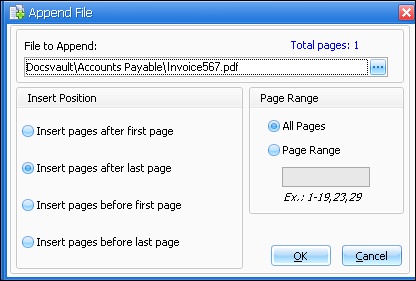 Append or Merge Files dialog box |
•Set the files from where pages are to be added
•Select the 'Page Range' to append.
•Select the 'Insert position'.
•Click on OK button
•Users with 'New Version/Check out' rights can add pages to an existing file and needs minimum 'Reads' rights to read from the source file.
|

•You can append or merge to only PDF files.
|
Editing a document by using Split or Extract Pages feature
•Right click on the document and select PDF options > Split or Extract Pages.
•Under Extract Section, specify the pages to extract.
•Provide the new File name.
•Select the destination, where you want to save the extract pages in Docsvault and click the OK button.
•In Import files and folder box, enter the description and select an appropriate Profile with predefined settings for the new PDF file. For more information see Assigning Profile to Documents.
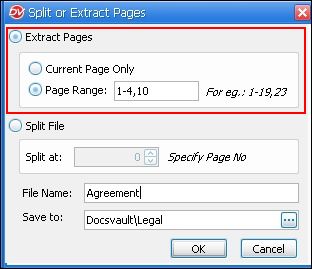 Extract Pages |
You can also Split the pdf by specifying the (n) page no. from where the file has to be split into a new file.
•User requires minimum 'Reads' rights to extract the file and should have 'New File rights on the folder to create and save the extracted pages in a new file. •User requires 'Overwrite/Delete' rights to split the existing file and needs minimum 'New File rights on the folder to create a new file.
|