Document Explorer
The look and functionality of Docsvault is very similar to Windows Explorer.
It presents a hierarchical structure of cabinets, folders, and files.
Docsvault also features simple drag-and-drop functionality for copying, moving and importing files and folders.
The interface provides multiple tabs so you can browse different files, folders, cabinets, and drives at the same time in different tabs. The multiple tabs also work as a container for Search results and Task manager.
The desktop client also supports screen scaling to zoom up contents for better visibility.
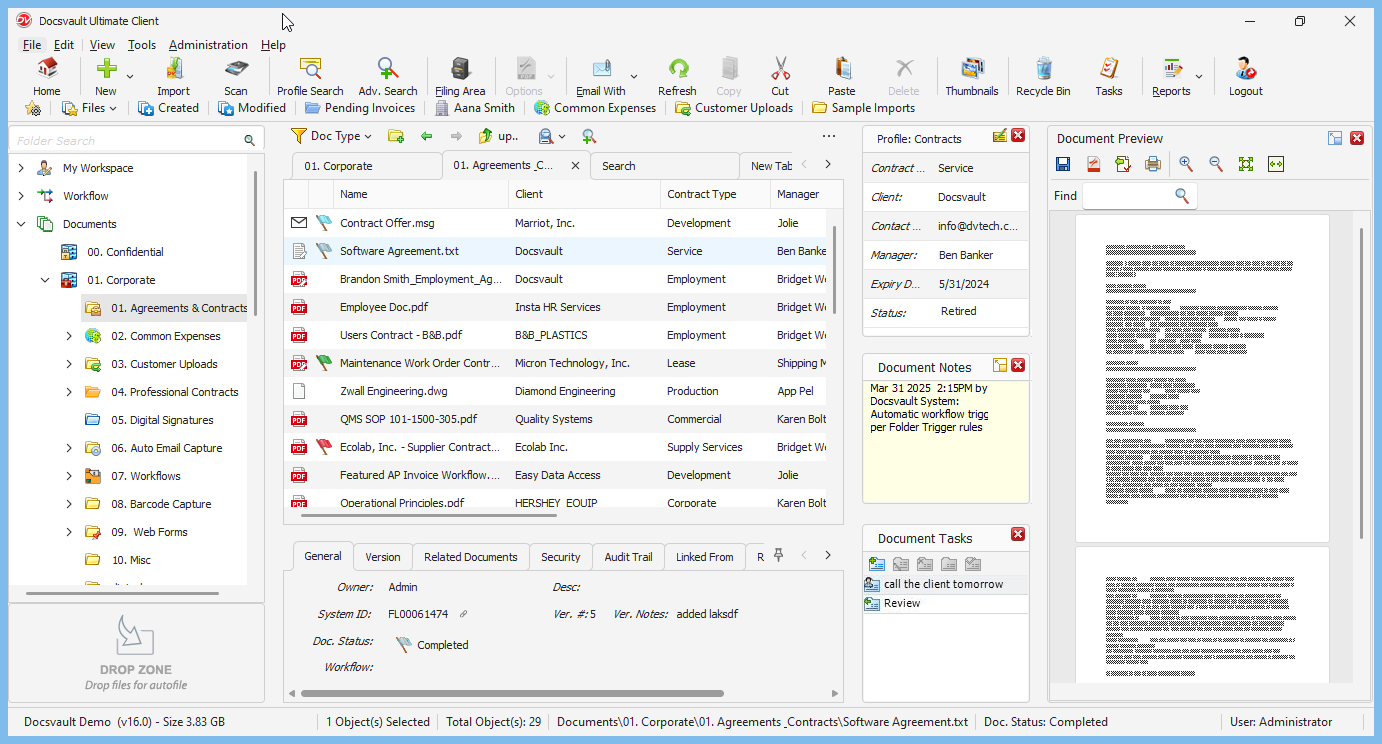 Docsvault Explorer window |
Let us get familiar with each component of the Docsvault Explorer window.
Menu bar: The menu bar provides access to the features and functions of Docsvault.
Toolbar: The toolbar consists of row of buttons that give you access to the features that are frequently used in Docsvault.
When clicked, these buttons activate certain functions, or tasks of the program.
Panels: Below the toolbar, there are 3 main panels (enclosed in 3 different colored rectangles for distinction)
oLeft Panel: On left tree view, we see a basic cabinet and folder filing structure that functions just like Windows file explorer making navigation within Docsvault very intuitive.
oCenter Panel: In the central list view, we see a list of all files and folders within a particular cabinet or folder. The bottom panel in the center panel displays general, versions, related documents, security, audit trail and linked from information for any selected file or folder.
oRight Panel: Here on the right hand size, Docsvault provides you with all additional information about the currently selected file. Details such as: profile, any related notes or tasks and reminders that are associated with an item can be found in this panel.
Document Preview feature is available only in Docsvault Enterprise & Ultimate Editions
|

Document Preview: The inbuilt Document Preview panel can instantly display contents of all common file formats ( Word, Excel, Emails, Tiff, PDF, images, AutoCAD drawings, DICOM images, and many more) without the need to install their native applications.
•Point to the cabinet, folder or file and use right mouse button to get the short cut menu of commands that apply to the item selected.
•Press F5 to refresh Docsvault Explorer. This will update displayed information with latest data.
|