Deleting and Restoring Documents
When you delete any files or folders from Docsvault they are placed in Docsvault Recycle Bin.
The Recycle Bin provides a safety net when deleting files or folders. If any documents get deleted in error, you can retrieve them anytime along with all their version and profile information as long as they exist in Recycle Bin.
To permanently remove files from Docsvault, you need to permanently delete files from the Recycle Bin. You can choose to delete individual files from the Recycle Bin or empty the entire Recycle Bin at once. Users with 'Empty Recycle Bin' system rights can permanently delete the files from the Recycle Bin.
•Prior to deleting a document, ensure that it is checked in and is not routed by another user.
|

Deleting documents
•Select the documents to be deleted.
•On the Edit menu, select Delete or click on  icon from the toolbar.
•At the delete confirmation message, click the Yes button.
•Only empty Cabinet can be deleted •If you delete a parent folder its sub folders will also be deleted •When you delete a document, all versions of the document will be deleted |

•Only the Administrator or the User with 'Overwrite/Delete' rights can delete the folder.
|

Restoring deleted documents
•From the View menu select Recycle Bin or click on  icon.
icon.
•This will display Recycle Bin dialog box as shown below.
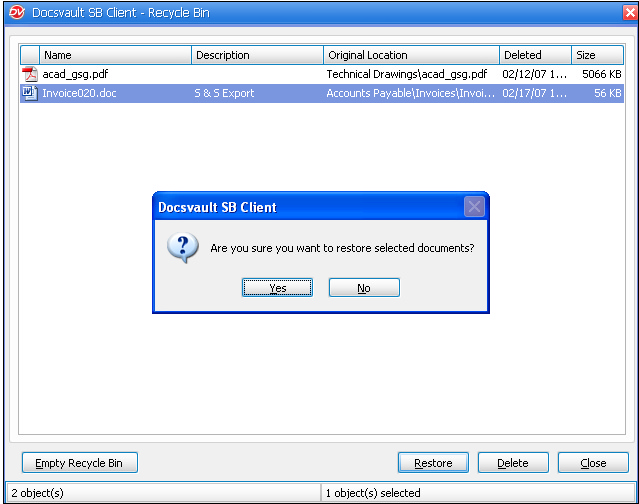 Restoring documents from Recycle Bin |
•Select files and folders to be restored and click on Restore button.