Basic Tools
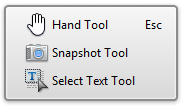
Selecting Tools > Basic Tools submenu allows selection of one of three options:
 |
See the subtopics for a description of each tool.
activates the  Hand Tool and changes the cursor to a hand.
Hand Tool mode permits you to "grab" the PDF page and move it within the pane by clicking and dragging the page you can also select another page as it comes into view as you scroll through a file and reselect an alternate page and effectively scroll through the entire file in this way by changing the 'grabbed' page area or indeed the page selected.
 Permits copying a rectangular area of a PDF page or the entire visible page area to the clipboard as a Bitmap, which can be pasted into a bitmap editor such as Microsoft® Paint® or indeed any other Windows application that allows the copy/pasting of content from the Windows clipboard. When selected, the cursor is changed to a Camera icon. Clicking on a page will copy the entire page, or you may click-and-drag to outline a rectangular area of the page. When you release the left mouse button, the outlined area will be copied to the clipboard as a bitmap. Clicking on the Hand or Select tools will clear the selection.
The  Select Tool allows you to select text on the screen for editing using the Edit menu items.
You can use the Copy and Paste commands to copy the selected text into another application. If you hold the pointer over the text selection, a menu appears that lets you copy, highlight, or underline the text, among other options.
Basic Tools Properties The Hand Tool, and Select Text Tool properties include only Exclusive mode. Activate exclusive mode by clicking on the  button. To Deactivate exclusive mode, click on the
  button.