To view your form's entries or submissions, click on the submission link of any form from the forms list.
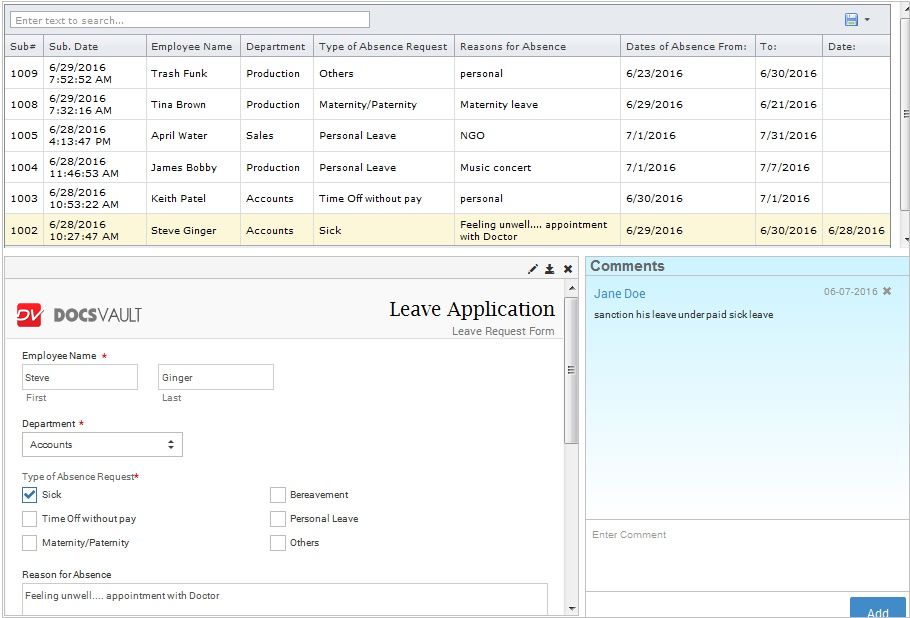
All entries will be listed with the newest entry at the top.You can also define a number of entries to display per page in the top right of a page. By default, pages display 10 entries per page.
Docsvault will automatically put submission date and ID fields first, and the remaining columns would be the fields in your form. All columns can be sorted by simply clicking on the column header.
Editing an entry
If you need to change an entry that has already been submitted.
•Select the entry from the entries list to view the entry in the preview panel.
•Click on the Edit icon at the top of the preview panel.
•Click on the Submit button to save the changes.
Searching an entry
You can search through entries by typing your search word in the search box just above your entries.
Click Enter to see the filtered result in the list panel.
Deleting an entry
To delete a specify entry:
•Select the entry from the entries list to view the entry in the preview panel.
•Click on the Delete icon at the top of the preview panel which will open a dialog where you will need to confirm the entry's deletion.
Note: Once you delete an entry, its data will be permanently deleted and you will not be able to retrieve it.
Commenting an entry
You can add comments for each entry.
•Select the entry from the entries list to view the entry in the preview panel.
•Add your comments in the comment panel.
 |