Rubber Band OCR
Semi-automated data capture has a necessary place in the spectrum of document capture automation process. Docsvault include a tool to automatically extract data and fill in the fields, making the filing process quicker and simpler. This feature is available in the Scan Form, and View window in Filing area.
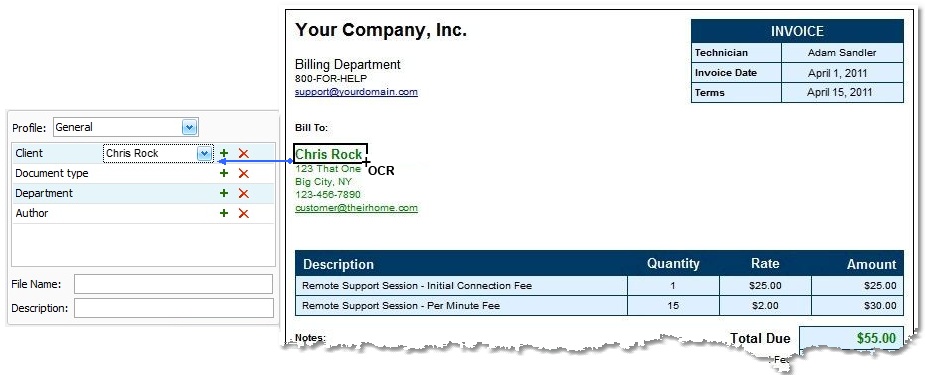
The Rubber Band OCR tool provides the ability to draw a box with the mouse over a portion of text, and automatically convert that segment into text, and place it into the current text field.
For example: In the Law Firm there is a need to extract case numbers from correspondence or in the AP Department to extract invoice header info from each scanned document or a document being filed from the filing area.
|
 Zone OCR |
Steps to capture data using Rubber Band OCR
In the example above, we have an invoice and we want to capture the Client's name from the invoice.
•Click on the Rubber Band OCR tool  or press Ctrl + R on your keyboard
•Select the appropriate field where the new information is to be input (in this example, it would be the 'Client' field).
• Once this is done, position your cursor on the top left corner of the region that you are capturing and hold down the left button of the mouse. Drag the mouse to select the region of text you want to extract, and let go of the left button after the selection is complete.
•The program will perform OCR on the region you created and auto-fill the field that you have selected with the newly acquired data.
Note: Docsvault will automatically progress to the next filed after placing the recognized text in the currently selected filed. This way a user can continue to select the next text in the document without first selecting the next text field.