Docsvault helps you keep track of all your physical records at every stage and ensure that it can be easily traced. Docsvault Retention tool can be easily adapted into your own unique records management program.
Once proper records retention schedules are setup from the settings node, the next step is the preparation of a records inventory of your physical documents stored in boxes or filing cabinets. The inventory should be performed by the person within the organization most familiar with the records and the filing system.
To create a New Record
To create a new Retention Record from the Desktop or Web Client:
•Click the New > Retention Record using the ‘New’ button or menu on the left top corner OR
•Right click on an empty space in the file list window and choose ‘New > Retention Record’
To create a new Retention Record from within the Records Retention Console:
| • | Click on the Records Retention Console node in Docsvault Server Manager OR |
•Select Administration > Records Retention Console in Docsvault Client
•In Records Retention Console, click on New Record to enter the details of the physical record
In the Record Details dialog that opens up, fill in the form with the following details:
| • | Select a location in Docsvault to store the entry in |
•The name and description of the record
•Select the record series from the drop list.
•Enter the base date (the date based on which the disposition date should be calculated). Entering this date will automatically calculate the records disposition date.
•If the records are retained in physical format, enter it’s volume.
•Add additional information of the record in the custom fields if set by your records manager. For example: the type of record, its storage location, etc. For more information to learn how to create custom fields, click here.
•Hold Type: You can use a retention hold to retain a file beyond its expiration period and prevent it from being disposed.
•Hold Reason: Type any comments that you want to provide about why the record is placed under hold.
| • | Click Save & Next button to save and make another entry of the record. |
A unique Record ID is automatically created for each record. This Record ID can be further used for tracking & searching this record.
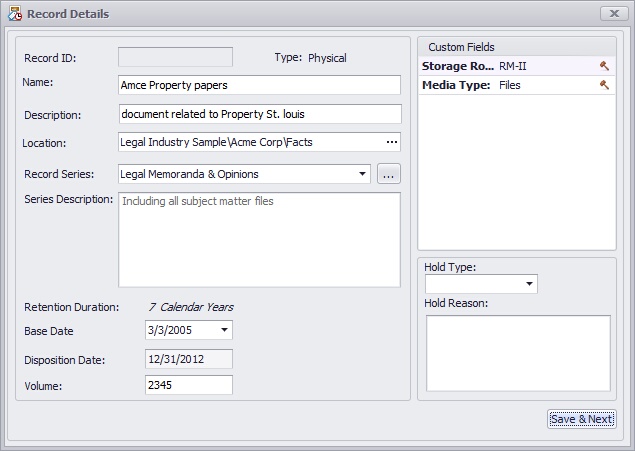 Create New Record |
•To release a record from hold, select a blank item from the Hold Type list box •To edit a record, double click on the record to open the retention dialog
|

•A user needs minimum of 'Create Records' rights to create a record |
