Adding MS Office documents using Plugins
•Open a file in MS Office application.
•Click on Save to Docsvault button on the toolbar of the MS Office application.
•A Docsvault navigation screen will then allow a user to choose a Docsvault folder location to save the document.
•In Import files and folders dialog box, select Profile from the drop down list and enter index information into data fields.
•Select the Folder Sections from the drop down list.
•Enter a short description.
•You have option to preserve the original system date of a document by selecting Keep original system dates.
•Click on Import button to begin importing your document.
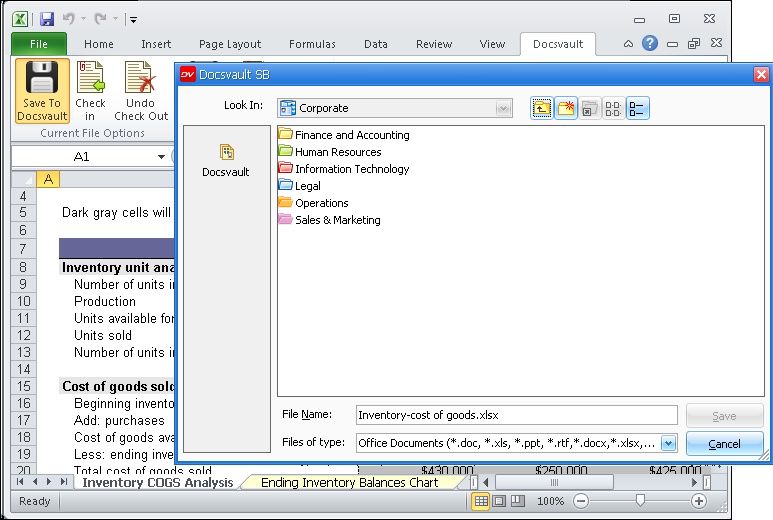 MS Office document added into Docsvault |
See also |
Importing Documents: Filing Documents from Filing Area |