This section covers:
Creating & Validating User Defined Index Fields
Editing an Index
Deleting an Index
Creating User Defined Index Field
•You can add static index values by this option in Docsvault Server Manager as well as in Docsvault Client applications. To edit the indexes from the client application, go to Administration > Profile/Indexes
•In Indexes tab, click on New button to bring up Create Index dialog box as shown below.
•Enter a Index Name and a short Description about it.
•Auto Options:
oEnable Set Doc. Relation to automatically set document relation between files and folder with the same index values.
oEnable Inherit Value to inherit the index value from parent folder. Values will be inherited for the same index field even if a different profile is assigned to the parent folder.
•From the Index Type, select User Input radio button
•From Data Type drop down list, select a value from Text, Numeric and Date.
•Select Allow Unique Values Only option to avoid duplicate index values for Text, Numeric & Date index fields.
•You can Set Mask to validate the index value. See Index Field Validation Masks below for more details.
•Click on Save button to save the new Index.
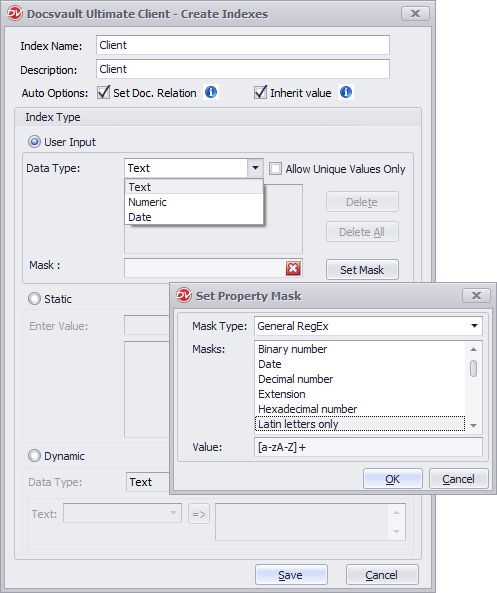 User Defined Index Field |
•You can apply validation masks to User Defined Text index field only. |

Index Field Validation Masks:
Data validation is typically used to ensure quality of incoming data. You can help users enter data correctly into your system by applying a predefined validation mask or creating your own validation rule on indexes. For example, you might use an input mask with a field that stores phone numbers so that a user enters ten digits of number. If someone enters a phone number without the area code, the system won’t go further until the area code data is added.
You can apply an input mask for Text and Numeric data type indexes.
•Text Data Type:
Validation Mask allow you to set regular expressions to match against an index field value. For example, you can validate a Text index value which stores data in a string to match a certain pattern of characters (alphanumeric). In this way, you can check that the telephone number or invoice number is added correctly.
The input mask for telephone numbers in the U.S format: (555) 555-5555
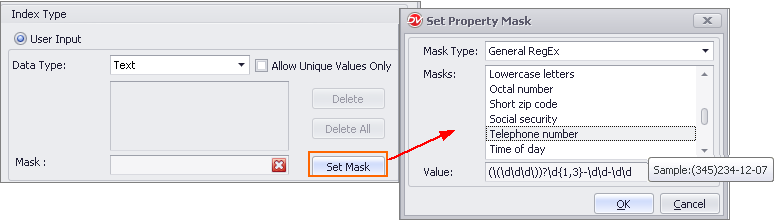 Text Mask |
You can even set up the custom validation mask using a regular expressions. For example, Invoice Number: 2018-INV-34789278
You can define an index field value that complies with the YYYY followed by string "INV" and eight(8) digits.
^(19|20)\d\d[- /.]INV[- /.][0-9]{8}$
This expression will match a year in YYYY format between 1900-2000 (19|20)\d\d with a separator '-' [- /.] followed by string INV and
eight digits [0-9]{8}
•Numeric Data Type:
Numeric input masks are specifically designed for entering numeric values (integer, float values, currencies, percentage, etc.).
oCurrency: The mask for entering a currency amount. The input mask consists of:
Max. digits: The length of a real number to allow
Decimals: This specifies the desired number of decimal places
Currency symbol: The currency symbol for display purposes only. So, if the "$9090" string is entered, the actual value stored would be 9090.
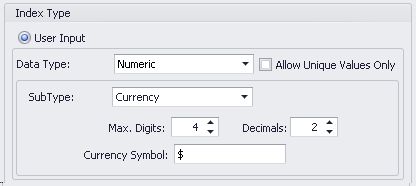 Numberic Mask - Currency |
oFixed Digit: The mask for entering real numbers with a fixed-length fractional part. The input mask consists of:
Fixed. digits: The length of a real number to allow
Decimals: Desired number of decimal places
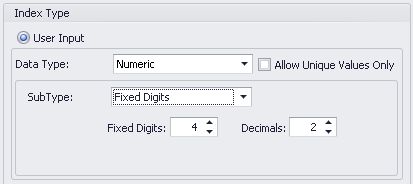 Numeric Mask - Fixed Digits |
oPercentage: The mask for entering percentage. The input mask consists of:
Decimals: Desired number of decimal places. The % symbol is for display purposes only. So, if the "15.55 %" string is entered, the value stored would be 15.55
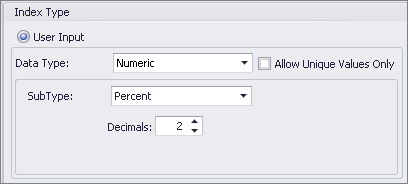 Numeric Mask - Percentage |
Editing an Index
•Select an Index from the list and click on Edit button
•In the edit dialog box, make the necessary changes
•Click on Save button to save the changes
Deleting an Index
•Select the Index from the list and click on Delete button
•This will display the confirmation message
•Click Yes button to delete the Index
•You can change the data type of an Index from Numeric/Date to Text data type. Note that once converted it is not possible to convert it back to Numeric/date data type. •Only Text data type indexes can be converted from Static to User Input and vice versa. |
