Docsvault offers numerous configuration options. You can, for instance, define whether to open the file in viewer or checkout the file for editing on double click. Each user can configure these settings in the user-specific settings (i.e from Tools > Options) of Docsvault desktop client application.
In Docsvault v10.7, Administrators group members can setup configuration settings for all users in their organization from the server and client side. Previously, the configuration was available to individual users only.
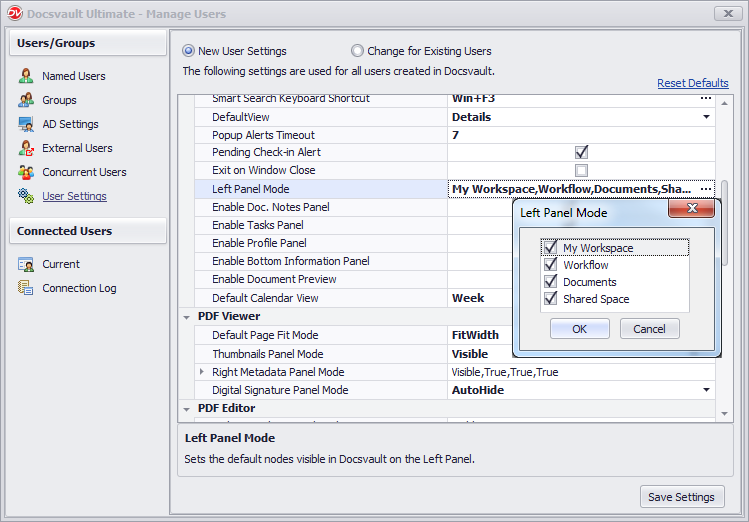 User Settings |
•In Docsvault Server Manager, select User Settings under Users/Groups node OR
Select Manage Users under Administration menu in Docsvault Desktop Client application.
To save settings for new users
•In User Settings tab, select New User Setting option to configure default settings for all new users.
•To reset the setting to default, select Reset Defaults link.
•Click Save Settings button to save the changes.
To change settings for existing users & groups
•Use Change for Existing Users option to change the settings for existing users and groups.
•For easy start, you can load the settings if already set for any user and make necessary changes.
•Then add users to whom you wish to apply the changes.
•Click on Apply button.
User Settings Description
This is a comprehensive configuration guidance for user settings:
Web Application |
|
Browser Idle Auto Logout Time |
Logs out user after the browser is idle for provided duration in minutes. Set value to 0 to disable. |
Open Tasks Panel In New Tab |
Open tasks window in a separate browser tab |
Enable Document Preview |
Enables the right Document Preview Panel |
Enable Profile Panel |
Enables the right Profile Panel |
|
|
Desktop Application |
|
Color Even Rows |
Colors even rows in listing as per selected theme |
Color Odd Rows |
Colors odd rows in listing as per selected theme |
Open PDFs in Docsvault Viewer |
Open PDF files in Docsvault Viewer |
Open Images in Docsvault Viewer |
Open images in Docsvault Viewer |
Theme |
Change application look and feel as per selected theme |
System Idle Auto Logout Time |
Logs out user after the system is idle for provided duration in minutes. Set value to 0 to disable |
App Temp Location |
Set temp location for application. Use of dynamic locations like %userprofile%, %Appdata%... |
Mouse Wheel Mode |
Sets default mouse when mode for various viewers in Docsvault |
Smart Search Keyboard Shortcut |
Keyboard shorcut to search highlighted text in Docsvault from other applications |
Default View |
Sets thumbnail or details view for listings |
Popup Alerts Timeout |
Sets the maximum time to display pop alert messages before it disappears (in secs) |
Pending Check-in Alert |
Notifies user of checked out documents when logging out of Docsvault |
Exit on Window Close |
Exists application instead of running in background when Docsvault window is closed |
Left Panel Mode |
Sets the default nodes visible in Docsvault on the left panel |
Enable Doc. Notes Panel |
Enables the document notes section in the right panel |
Enable Tasks Panel |
Enables the document tasks section in the right panel |
Enable Profile Panel |
Enables the document profile/indexes in the right panel |
Enable Bottom Information Panel |
Enables the bottom panel for additional information on selected items. |
Enable Document Preview |
Enables the right document preview panel |
Default Calendar View |
Sets default view for tasks calendar under My Workspace |
|
|
PDF Viewer |
|
Default Page Fit Mode |
Sets the default mode for page view |
Thumbnails Panel Mode |
Sets the default mode for page thumbnail panel on the left of viewer |
Right Metadata Panel Mode |
Sets the default mode for document metadata pen on the right of viewer |
Digital Signature Panel Mode |
Sets the default mode for digital signature information panel on the left of viewer |
|
|
PDF Editor |
|
Right Metadata Panel Mode |
Sets the default mode for document metadata pen on the right of viewer |
|
|
MS Office Addins |
|
Save Attachments Separately |
Extracts attachments and saves them separately with email messages |
Allowed Attachments |
Specifies attachments types to save by their extension e.g pdf, docs, xls. Keep empty to allow all |
Enable Metadata Panel in Word |
Displays document metadata panel in MS Word |
|
|
Navigation Dialog |
|
Default Look In Location |
Sets default location where to search in Docsvault |
Default Search For Type |
Sets default for what to search in Docsvault |
|
|
CheckOut |
|
Open Files on Checkout |
Sets defaults to open files automatically on checkout |
Default Checkout Open Mode |
Sets default for files to open in associated application or prompts user to choose from list |
Checkout PDFs in Docsvault Editor |
Opens PDF files in Docsvault PDF Editor on checkout |
Include Sub Folders |
Includes subfolders and files when checking out folders |
App Checkout Location |
Sets checkout location for application. Use of dynamic locations like |
Display Checkout Dialog |
Sets display mode for checkout dialog |
File Double Click Behavior |
Sets default behavior for double click action on files |
|
|
CheckIn |
|
Default to New Version |
Sets default for creating new version on checkin |
Default to Delete Files after Checkin |
Sets default for deleting local checked out files after checking them in |
Keep Files Checked Out |
Keeps files checked out (updates file to repository without checking them in) |
Checkin Subitems |
Includes subfolders and files when checking in folders |
|
|
Import |
|
Default to Delete Files After Import |
Sets default behavior for deleting source files and folders after successful import |
Default to original dates at Import |
Sets default behavior for keep original system created date for imported items. |
Default Import Behavior |
Sets default import behavior for imported items |
|
|
Task Options |
|
Display Popup Reminders |
Sets show/hide behavior for tasks pop up reminders |
Display System Tray Alerts |
Sets slow/hide behavior for system tray notification for new tasks, notes and events |
Auto File Completed Tasks |
Automatically file old tasks after being completed (In days) |
|
|
Search Options |
|
Enable Search |
Set this option to hide search panel for specific users. This is useful in preventing users from accessing documents that they cannot navigate to through normal folder structures. |