Sorting files and folders
You can sort files or folders by categories such as date, name, size, and type.
•Double-click the folder that contains the files you want to view.
•On the View menu, point to Arrange Icons, and then click the appropriate command Or
Right click on the List view panel, point to Arrange Icons and then click the appropriate command
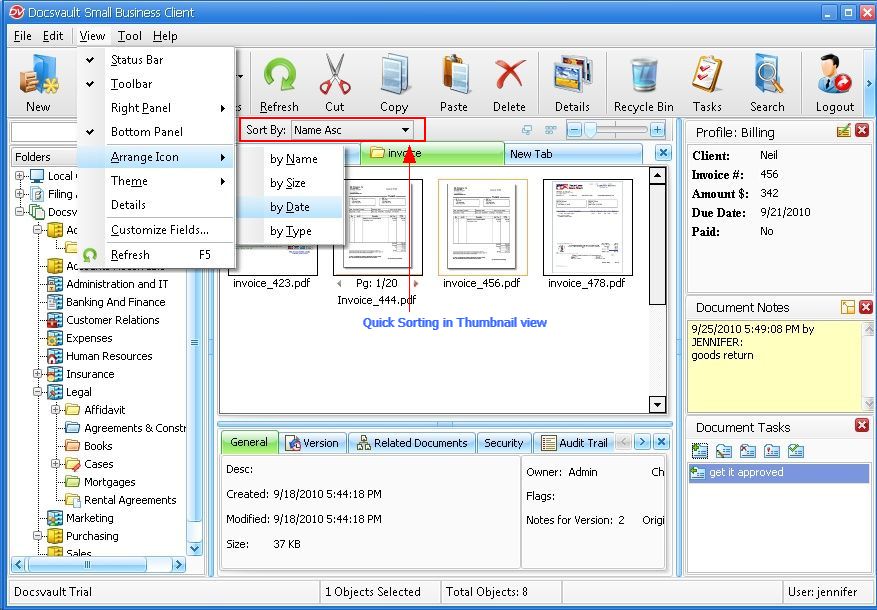 Arrange Icons |
Name: Arrange icons in alphabetical order by the icon name
Size: Arrange icons in order of file size
Date: Arrange icons in the order that the file was last modified
Type: Arrange icons in order of type. For example, if you have shortcuts to several PDF files in your folder, these will be arranged next to each other.
Quickly sorting
In Details View, you can also quickly sort the listing in ascending and descending order by clicking on a column header.
In the Thumbnails view, select the sorting option form the list box next to Sort By in the panel below toolbar.