Importing files using Watch Folder - Simple Import Mode
Docsvault can be configured to watch folders on Docsvault server side for recently scanned or saved documents and queue them for automatic import into the Docsvault "Filing Area" or a predefined folder within the Docsvault repository. The watch folder utility is ideal for importing scanned files generated from network scanners or multifunction devices that are configured to scan documents to a specified shared folder on a network.
When new documents are created in or copied into these watch folders, Docsvault will automatically identify these documents and import them to its predefined destination.
To Set Up Watch Folders in Simple Import Mode
•Select Watch Folders node in Docsvault Server Manager. This will display a list of all watch folders configured on the server.
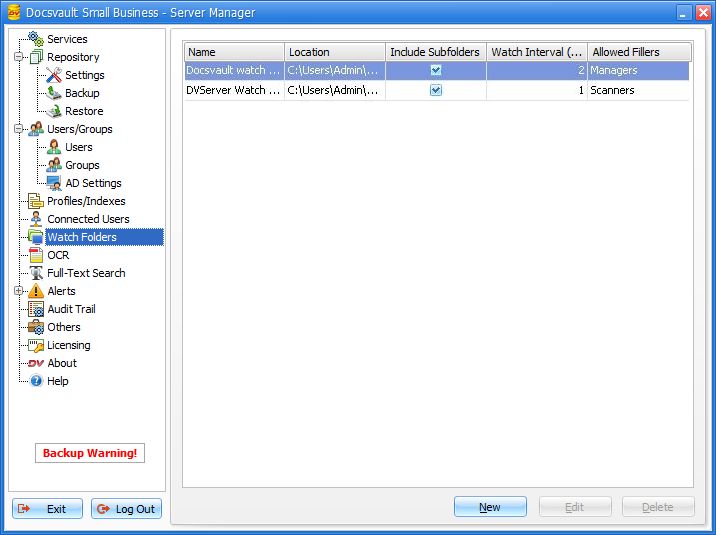 Current Watch Folders List |
•To setup a new Watch folder, click on New button. This will initiate a two step wizard.
Step 1: Basic Settings
Source Setup:
•Name: Enter a sensible name for this watch folder job. This name will be displayed on the Client side under the Server Watch Folder node in the Filing Area (if filing area is selected as the destination).
•Watched Folder: Specify location of the folder to be watched
•Docsvault watch folder service can also watch sub-folders for new file activity (sub-folders are enabled with the checkbox 'Include Subfolders')
Source Options:
•Set the time interval for the Docsvault watch folder service to check for new files and folders to import
•You have option to either preserve the original system date and time (created and modified) of files/folders being imported or use the actual date and time of import into Docsvault
•You can handle the files and folders by selecting one of the following options after they have been imported into Docsvault
•Keep source files at original location (Docsvault looks for new files based on their created/modified date)
•Move source files to backup folder at source (files are moved to a folder named 'Docsvault_Imported' at the source location)
•Delete source files
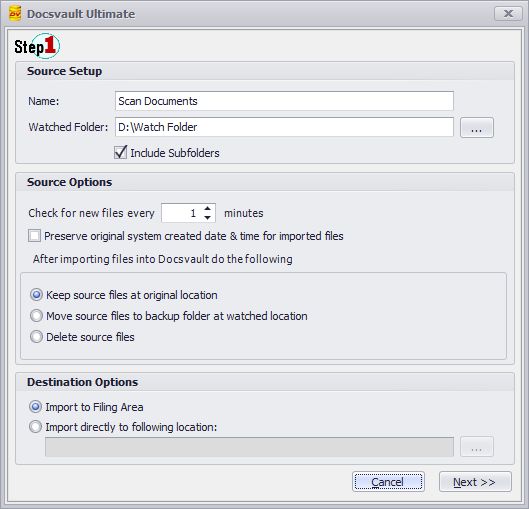 Watch Folder Wizard - Step 1 |
Destination Options
•Import to Filing Area: Select this option to import documents to the Filing Area and file it at a later time. Authorized users can access the imported documents in the filing area and transfer them manually to proper folder in Docsvault.
•Import directly to following location: Select this option to automatically import files directly into specified folder within the Docsvault repository.
•Click on the Next button to continue
|

If the files or folders are being used by any other application during the actual importing process they will be skipped. |

Step 2: Mapping Watched Folder
Metadata:
This section allows specifying default index values for the files to be imported. Docsvault will automatically assign these predefined index values to the relevant profile. In case of 'Filing Area' as the destination, the filing user can change these values during the filing process if necessary.
•Click on the Add button to select the default set of indexes
•Enter the default values against the indexes
Assigning index values prior to actual filing of documents is optional. This option can however help the filing user to either reduce manual entry or better identify a type of document. Note that the index values specified here will only be visible during the filing process if an appropriate profile is selected that contains these indexes. |
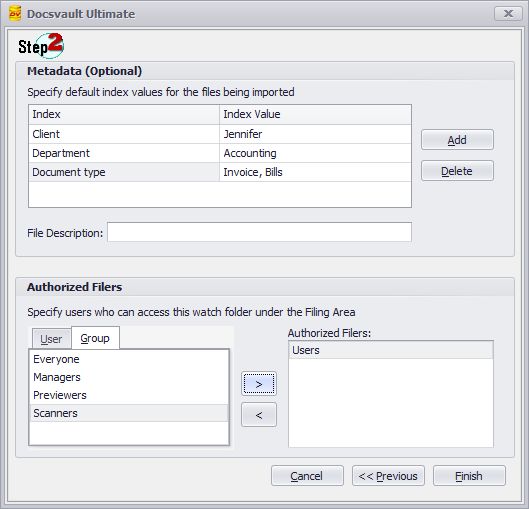 Watch Folder Wizard - Step 2 |
File Description:
You have an option to enter the default file description for documents being imported
Allowed Filers:
This section allows you to select the users and groups that will have rights to file the imported documents from the 'Filing Area' to a proper location in Docsvault repository from the client application. This option will be available only if Import to Filing Area is selected in Step 1.
Document Ownership
This option will be available only if Import directly to following location option is selected in Step 1. You will need to specify the ownership of the documents that are imported directly into one of the folder within the Docsvault repository. Admin will be the default owner of the documents imported from the watch folder.
 Document Ownership |