Circulation Settings
Physical Records can be checked out to third parties or external users(other than Docsvault users). You can create a list of such users/entities in Circulation Settings.
•In Reseller Retention Console, click Circulation to open the circulation settings window.
•Click New button and enter the user's details such as name, phone, email address and notes if any. Note that email id is essential in case you want to send automated email reminders to the user
•Click on the Save button to create a check out user.
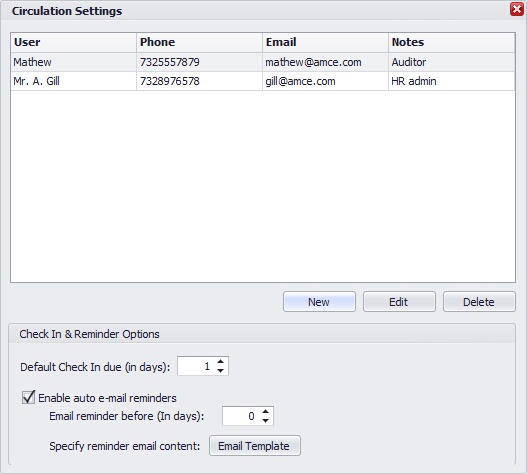 Circulation Settings |
|
Check In & Reminder Options
Default Check In due (in days):
Due days can be set individually for each checked out record. However, you can set the default check in days for checked out records. When a record is checked out the due date, unless not altered manually, will be calculated based on days specified here.
Enable Auto email reminders
Select this checkout if you wish to send automated reminders to users who checked out records.
In Email reminder before (in days), you can specify number days prior to due days you intend to send out the email reminder.
Email Template:
You can edit the automated email reminder template using variables to customize the outgoing email messages..
Click on the Email Template to edit the reminder email. This template will be used to send email reminders to the users when a record is due to be checked in.
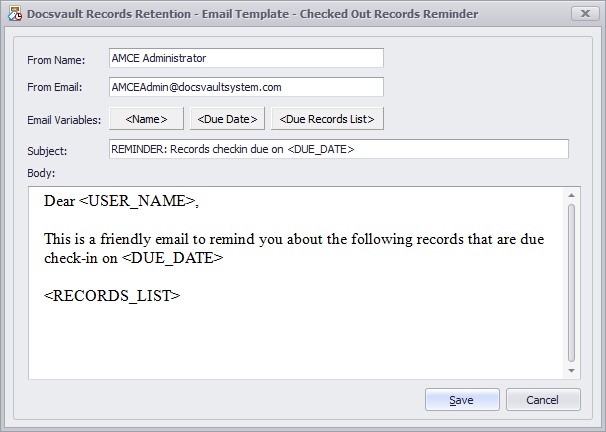
In the Email Template window, enter the appropriate details such as:
From Name: Enter the Sender Name
From Email: Enter the Sender email id.
Subject: Enter the Subject of your email; you may use variables such as <Due_Date>
Body: Edit or replace the text-only contents; variables may be used in the text content of your email as shown below.
When you are done, select Save.
Using Email Template Variables
The following variables can be used in the Subject and Body contents of the email template:
<Name> inserts the users who have checked out the records
<Due Date> inserts the due date of the checked out record
<Due Records List> inserts the lists of records checked out by that user
Example of Email Template
 Circulation Settings |
|