Records Audit
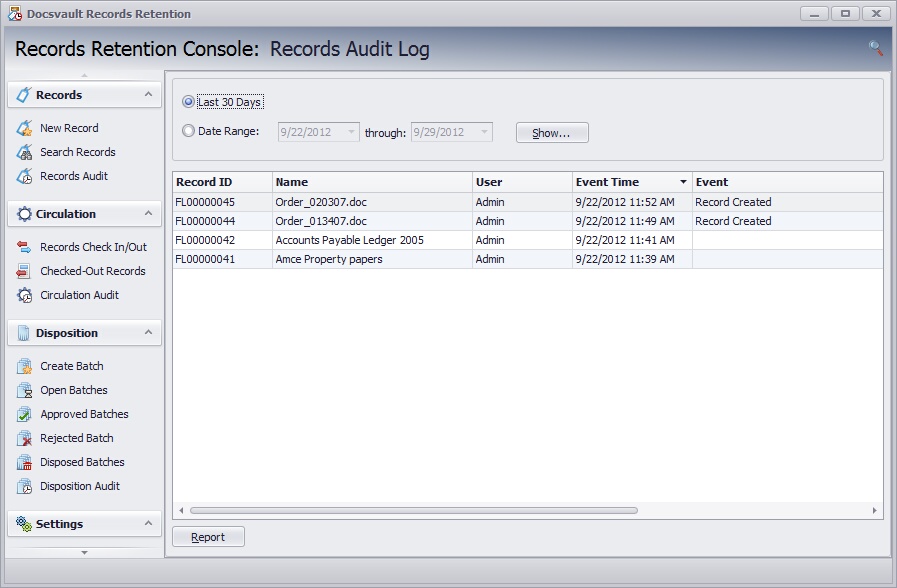
One of the key steps in creating an effective Records Retention is to perform a 'Records Audit'. This will capture the actions performed on the retention records, so that the 'Records Manager' can monitor and respond effectively to requests in accordance with the organization or legal regulations.
A records audit establishes the following information;
•How and where the record is stored
•Who created it and when
•What action has been performed on the record
You can select from several categories of events to audit from the Audit Settings tab in Properties dialog box. For more information,
see 'Setting Audit Trail' in the Client Manual.
 Records Audit |
Viewing Audit log
•In Reseller Retention Console, click Records Audit to open the records audit log window
•By default all events performed on all the retention records in last 30 days are listed
•To query for events occurring between the specific dates, select the radio button next to Date Range and enter the from and through dates.
•Click on the Show button to display the audit log
To filter the audit log, click on the  Search icon. Enter the keyword in the text box and click on the Find button. This will further narrow down the audit log list with the keyword highlighted.
This report can be saved in a useful format for review by clicking on Report button.