Docsvault Web Explorer
After you log in to Docsvault web client interface, Docsvault Web Explorer page is loaded. This is the home page of your web document management system.
This page provides access to your Docsvault repository, where you can manage documents and folders in the web client interface.
Top Menu: Access basic features and functions of Docsvault.
Left Panel: Easily navigate through various locations using a familiar tree and folder structure.
Center Panel: View a list of all files and folders within a selected cabinet or folder. Right-click on any item to access a list of possible actions, similar to a desktop client. Double-click on files or folders to open them in a new tab, download them, or navigate inside a folder.
Right Panel: The right most icon strip allows users to open up panels on the right of the Center Panel to display associated information for the selected items.
•Document Properties: Displays general information of the selected item, such as filename, system ID, version, workflow status, digital signature status, disposition date (if retention is applied), and the document’s profile.
Preview files in a new tab for supported types (PDF, doc, docx, xls, xlsx, txt, csv, etc.) by clicking the file name displayed at the top in the Document information panel. Mark items as favorites by clicking the favorite star icon next to their names.
•Document Notes: View all notes for the selected item in a popup dialog.
•Document Task: Displays a list of tasks associated with the selected item in a popup dialog
•Document Preview:Enable a preview panel that displays contents of supported file types.
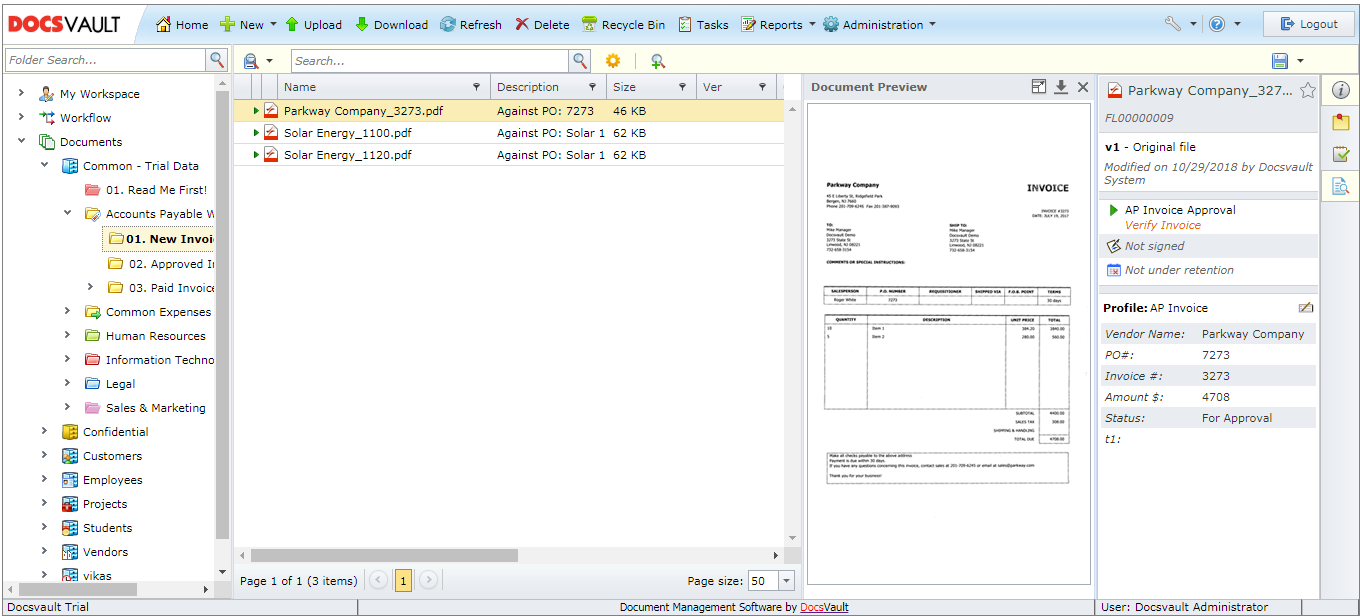 Docsvault Web Client Interface |