View Workflow Reports
Docsvault provides built-in individual and manager level workflow reports to enable you to assess the efficiency of your workflows and related business processes. You can use these reports to locate problems with processes or to determine whether a group or individual is meeting performance targets for a particular business process.
Workflow reporting options
You can access the Workflow Reports by clicking on Reports in Workflow panel.
User Reports
These reports can be accessed by the initiators and participants of the workflow.
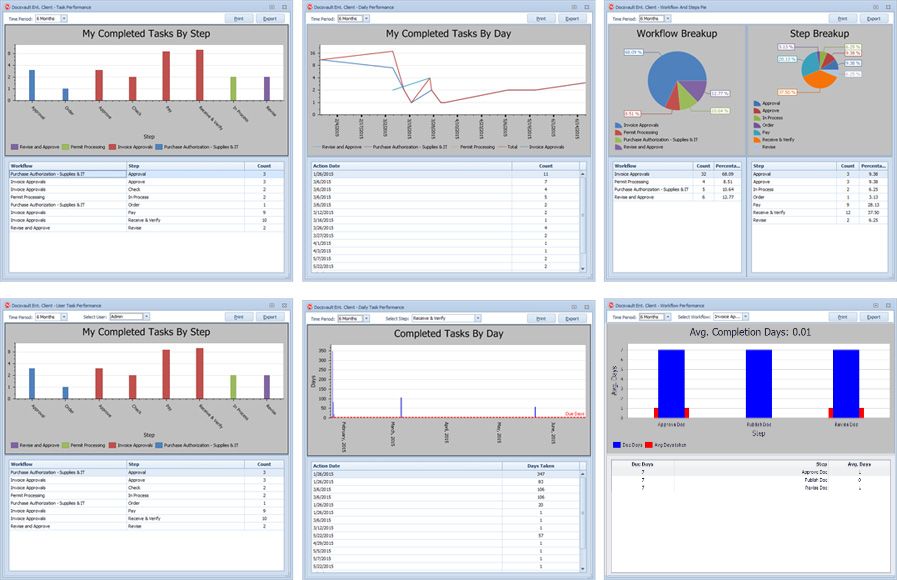
•Task Performance: Shows number of tasks performed by the user on any workflow step within specified period of time
•Daily Performance: Shows time period the user has taken to complete the step of a workflow on all of its occurrences with respect to time
•Workflow Steps Pie: Provides comprehensive picture of user's contribution in the Workflows and its individual Steps.
Manager Reports
Admin, Watcher or Manager can access following workflow reports:
•User Task Performance: Displays number of time tasks were performed by each user for given period of time
•Daily Task Performance: Displays time period taken to complete a step of a workflow for given period of time
•Workflow Performance: Displays average days taken to complete the entire workflow. It also records average days taken at individual steps of a workflow during given period of time. It will also indicated whether, on an average, the steps have been executed before or after the due date. The report can be filtered by year, months, weeks and days (on the basis of the creation timestamps).
Reports can be exported out in various formats for further manipulation.
 Workflow Reports |
Workflow Action Report:
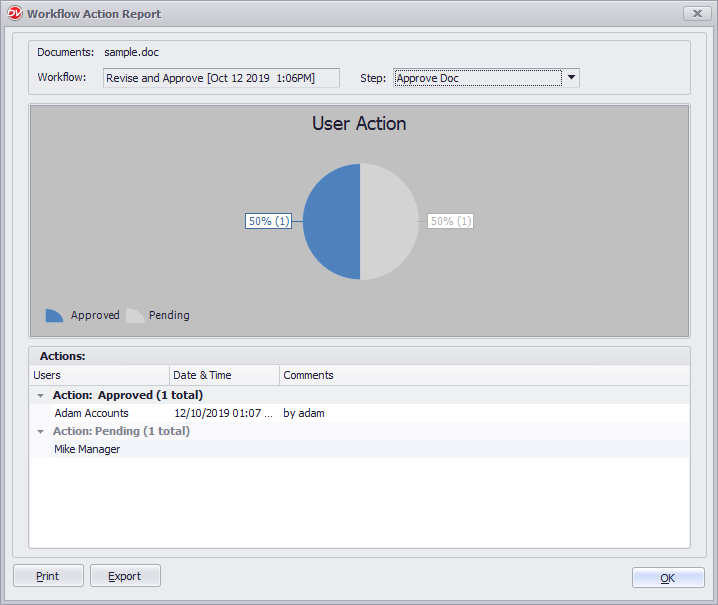
It reports actions performed by all participants of any specific workflow steps. It records the timestamps and comments of each participant. This report clearly indicates users who have performed a required action and a list of users who still have to performed any action. You can generate this action report for any current or previous step of the workflow and even for a completed workflow.
This report can be viewed by simply right clicking on a workflow task and selecting Workflow > Action Report. Even after the workflow is complete on any document, the step action report can be launched from the right click menu of the document and selecting Workflow > Action Report You can print or export this report in various format like PDF, Word, Excel or HTML.
 Action Report |